;
};
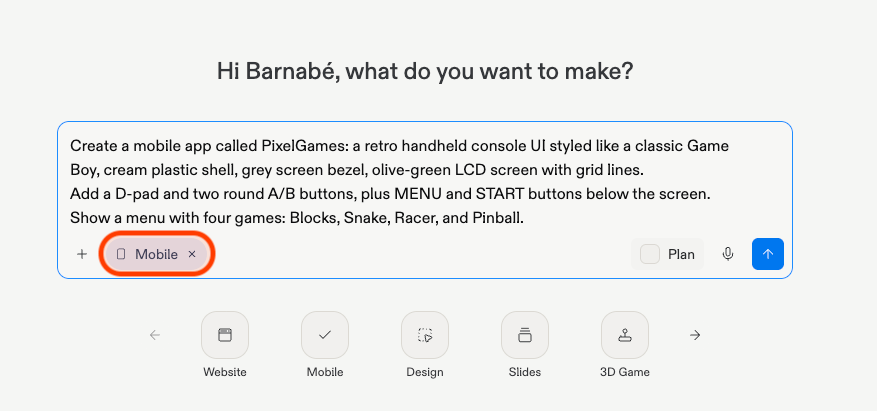
export const pixelGamesPrompt = "Create a mobile app called PixelGames: a retro handheld console UI styled like a classic Game Boy, cream plastic shell, grey screen bezel, olive-green LCD screen with grid lines. Add a D-pad and two round A/B buttons, plus MENU and START buttons below the screen. Show a menu with four games: Blocks, Snake, Racer, and Pinball.";
Building a mobile app on Replit works the same way as building a web app: you describe what
you want, and Agent writes the code. This guide walks through that process with one example,
so you can see the pattern before applying it to your own idea.
## Before you start
All you need is a [Replit account](https://replit.com/), free to create.
The goal is to complete one full loop:
* Build it with [Agent](/features/agent/overview)
* Test it as a mobile app
* Publish it, and share it
Agent is Replit's AI builder. You describe what you want, and it creates the app, explains
what it did, and fixes what's broken.
## 1. Tell Agent to build the app
Open Replit and start a new app. Describe what you want to build, then select **Mobile app**
as the app type.
{pixelGamesPrompt}
## 2. Confirm it works in preview
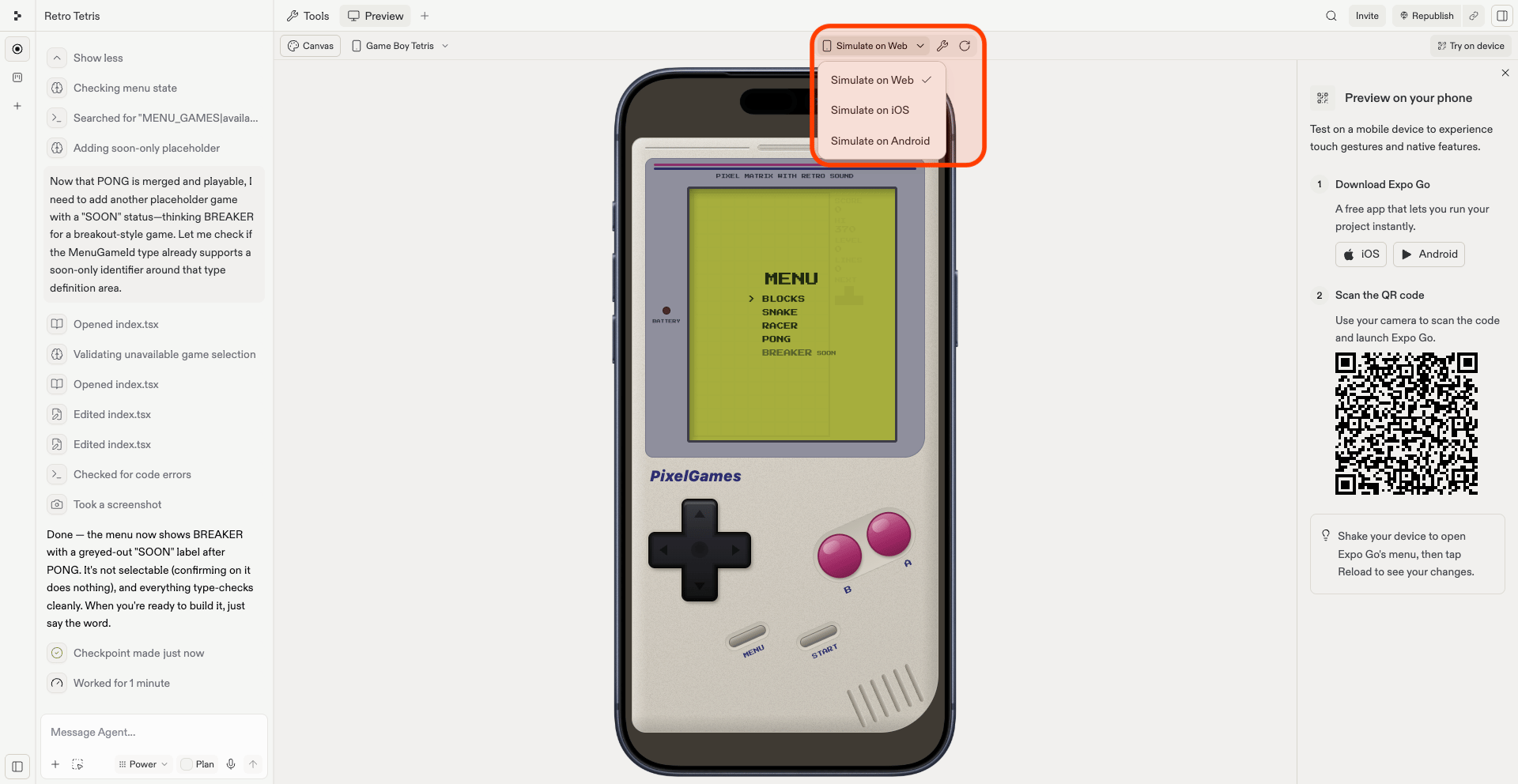
Replit simulates PixelGames as iOS or Android directly in the preview pane. This is the
fastest way to check a change.
Replit launches the simulation as soon as PixelGames is ready, no setup needed.
Use the **Simulate on...** dropdown in the preview pane toolbar (next to the wrench and
refresh icons) to switch between **iOS**, **Android**, and **Web**.
### Check that it actually works
Use PixelGames like a player would:
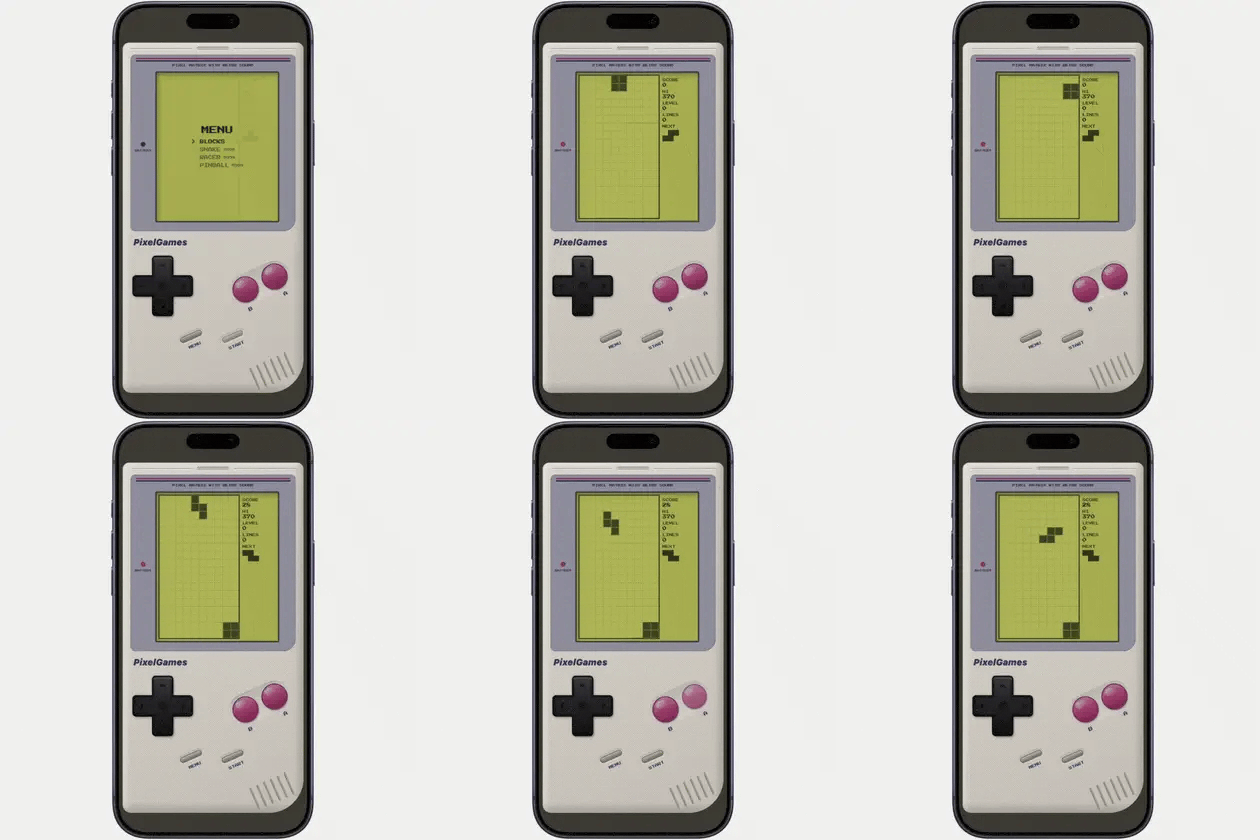
* See the **MENU** screen with **Blocks** selectable and the other three games marked "SOON."
* Open Blocks and play a few pieces with the D-pad and A/B buttons.
* Confirm the score, level, and lines in the HUD update as you play.
If something looks wrong, describe what you saw to Agent, you don't need to find the bug
yourself.
## You've got PixelGames running
You went from a single prompt to a playable game, previewed right inside Replit.
## Troubleshooting
The first build takes a minute or two, so give it a moment before assuming it's stuck.
If it's still blank after that, check the console for an error and share it with Agent.
Press **R** in the console to reload PixelGames, then use the refresh icon in the preview
pane toolbar if it still looks stale.
This usually means a JavaScript error or a missing package. Read the message, it often
points to the exact file and line, then share it with Agent and ask for a fix.
Some packages behave differently across platforms, one that works on web might not
support native, or need different setup. Ask Agent "Does this package support native?"
before relying on it.
The first build is always slower since nothing is cached yet, later ones should be
quicker. If it stays slow, ask Agent to check for unnecessary packages in the project.
This means a package isn't installed, or is installed but the cache is stale. Ask Agent to
install it or clear the cache, and double check the package name isn't misspelled.
## What's next
Feel PixelGames as a real phone app: buttons under your thumb, haptics, the real screen
size.
Let players sign in and save progress.
Save profile photos to App Storage.
Tell players when a new game ships.
Charge players for content in PixelGames.
 ## 2. Confirm it works in preview
Replit simulates PixelGames as iOS or Android directly in the preview pane. This is the
fastest way to check a change.
## 2. Confirm it works in preview
Replit simulates PixelGames as iOS or Android directly in the preview pane. This is the
fastest way to check a change.
 ### Check that it actually works
Use PixelGames like a player would:
* See the **MENU** screen with **Blocks** selectable and the other three games marked "SOON."
* Open Blocks and play a few pieces with the D-pad and A/B buttons.
* Confirm the score, level, and lines in the HUD update as you play.
If something looks wrong, describe what you saw to Agent, you don't need to find the bug
yourself.
## You've got PixelGames running
You went from a single prompt to a playable game, previewed right inside Replit.
## Troubleshooting
### Check that it actually works
Use PixelGames like a player would:
* See the **MENU** screen with **Blocks** selectable and the other three games marked "SOON."
* Open Blocks and play a few pieces with the D-pad and A/B buttons.
* Confirm the score, level, and lines in the HUD update as you play.
If something looks wrong, describe what you saw to Agent, you don't need to find the bug
yourself.
## You've got PixelGames running
You went from a single prompt to a playable game, previewed right inside Replit.
## Troubleshooting