> ## Documentation Index
> Fetch the complete documentation index at: https://docs.replit.com/llms.txt
> Use this file to discover all available pages before exploring further.
# Launch a landing page
> Build and publish a landing page with one clear offer, one call to action, and a working form that captures responses.
export const RACHEL_JONES_PROMPT = `Build me a one-page website for an online fitness coach named Rachel Jones. It should feel premium, like a magazine ad — dark, moody, and luxurious, with black and warm gold as the only colors. Big bold headlines, lots of empty space, and elegant serif accents. No bright colors, no rounded "tech startup" vibes.
Here's what should be on the page, top to bottom:
A header bar with a small gold "RJ" logo on the left, the words "RACHEL JONES — FITNESS COACH" next to it, a few menu links across the middle (About, Coaching, Programs, Success Stories, Resources), and a gold "Book a Free Consultation" button on the right.
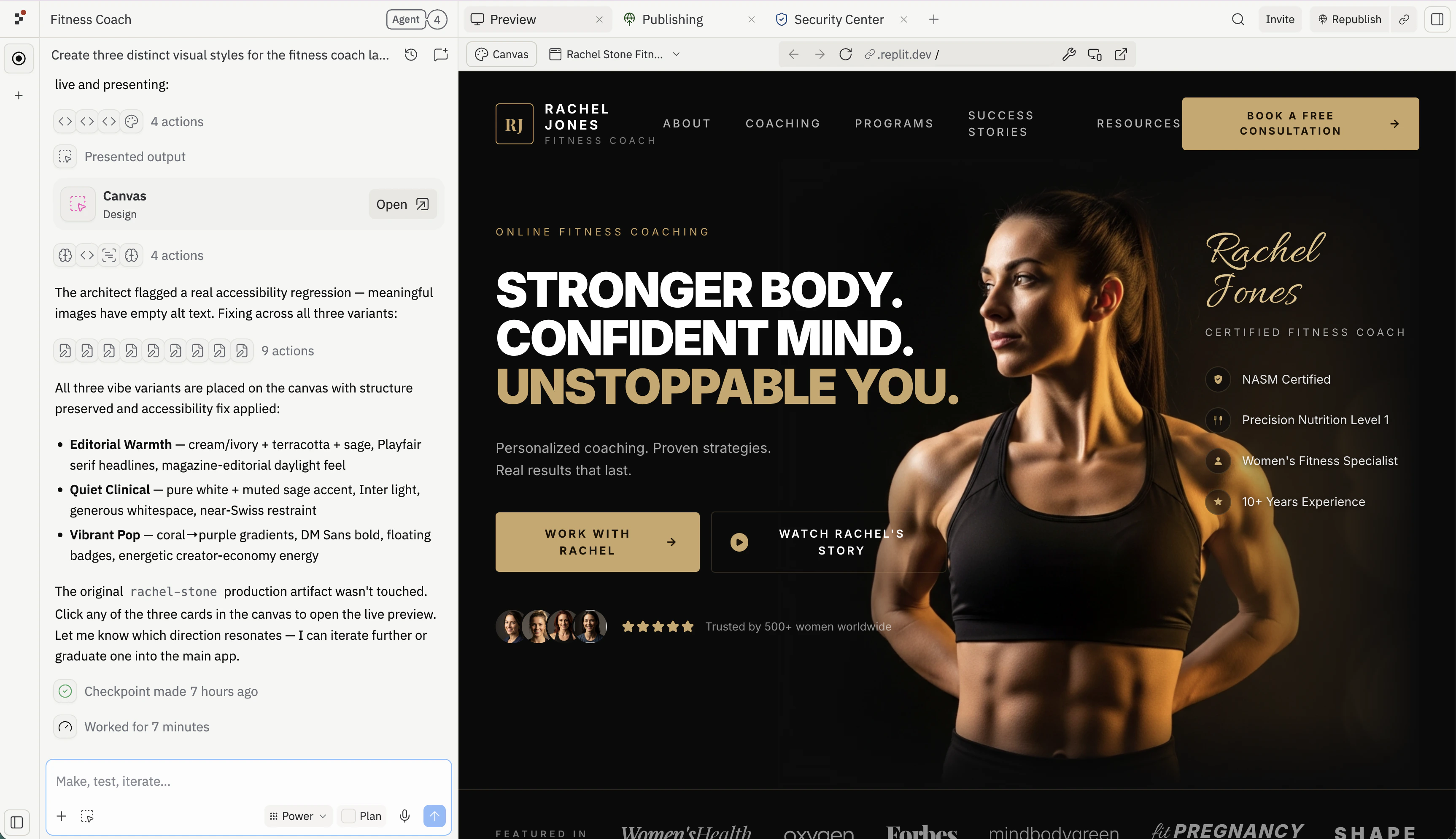
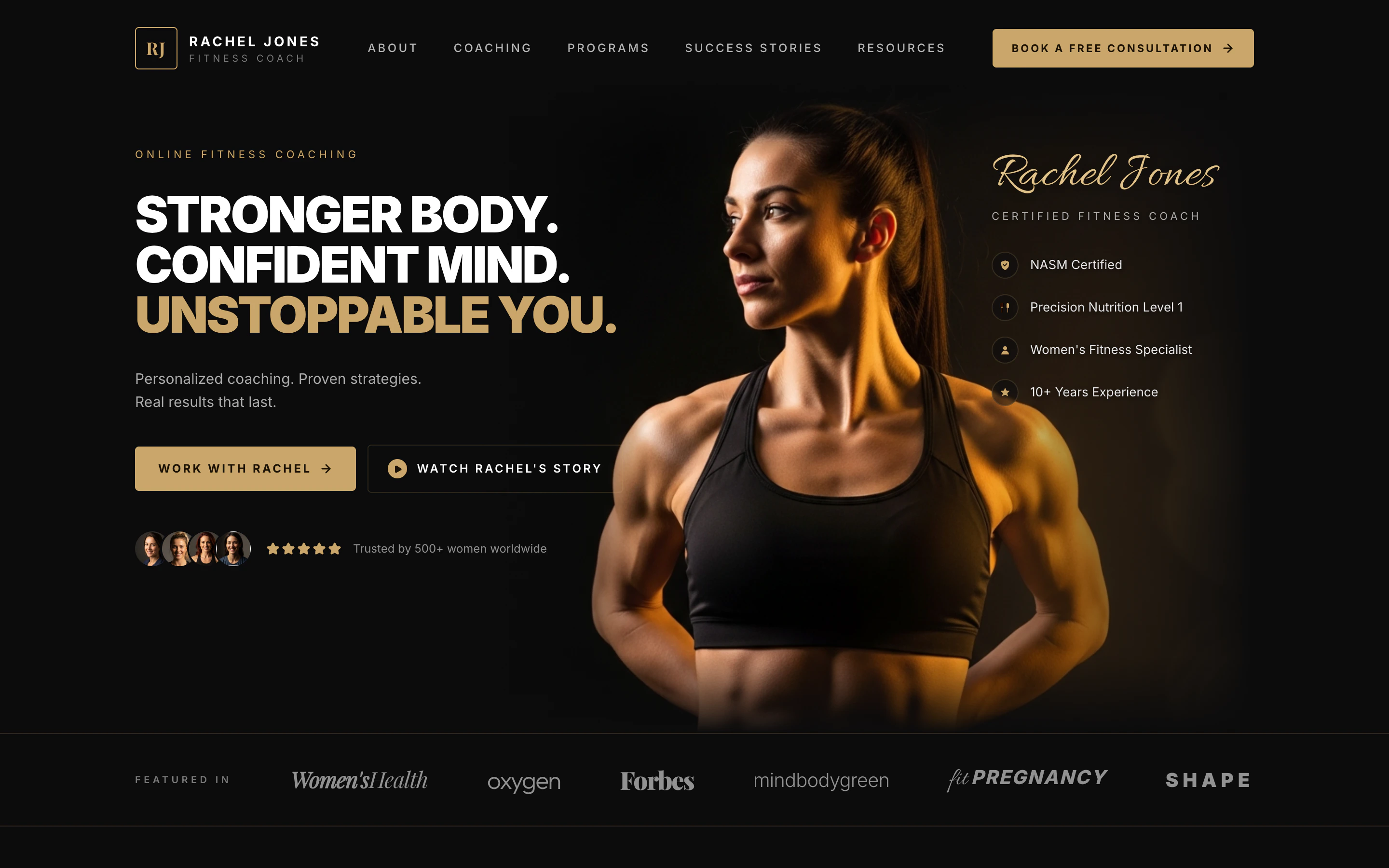
A huge hero section with a dramatic close-up photo of a strong, fit woman lit with warm gold light against a black background. On the left side over the dark area, put a giant three-line headline:
"STRONGER BODY. CONFIDENT MIND. UNSTOPPABLE YOU." — with the last line in gold.
Underneath: "Personalized coaching. Proven strategies. Real results that last." Then two buttons: a gold "Work With Rachel" and an outlined "Watch Rachel's Story" with a play icon. Below that, show 4 little circular client photos and 5 gold stars with the line "Trusted by 500+ women worldwide."
On the right side, layered on the photo, write "Rachel Jones" in a fancy gold script font, with "CERTIFIED FITNESS COACH" underneath, and a list of credentials with little gold icons: NASM Certified, Precision Nutrition Level 1, Women's Fitness Specialist, 10+ Years Experience.
A "Featured In" strip — a thin row showing fake magazine logos written in different fancy fonts: Women's Health, Oxygen, Forbes, mindbodygreen, Fit Pregnancy, Shape.
A "Holistic Approach" section — centered headline "A Holistic Approach. Real Results." in an elegant serif. Below it, four columns side by side, each with a small gold icon, a title, and a one-line description: Custom Training, Nutrition Guidance, Mindset Coaching, Accountability.
A "Success Stories" section — on the left, the headline "Stronger on the Outside. Stronger on the Inside." with a "See More Success Stories" button. On the right, three before/after transformation photos of women, each with a big gold result number underneath ("−24 LBS in 16 weeks", "+18 LBS of muscle", "−20% body fat in 14 weeks"), a short italic quote, and the client's first name.
A final call-to-action panel — a wide dark card split into three parts. Left: a friendly portrait of Rachel. Middle: headline "You Don't Need More Motivation. You Need the Right Plan." with a gold "Book Your Free Consultation" button. Right: three small benefits with icons — "1:1 Strategy Call", "Personalized Plan", "Start Your Transformation".
For the photos, generate them — I want a fit woman with warm gold dramatic lighting on a black background, very cinematic. The before/after photos should be full-body in the same dark studio style.
Make it look like a real, professional coaching brand — not a template. Don't add forms, signups, or extra pages — just this one beautiful landing page.`;
export const PromptActions = ({prompt = "", campaign = "docs-prompt-actions"}) => {
const LZ_SRC = "https://cdnjs.cloudflare.com/ajax/libs/lz-string/1.5.0/lz-string.min.js";
const ensureLZString = () => {
if (typeof document === "undefined") return;
if (window.LZString) return;
if (document.querySelector(`script[src="${LZ_SRC}"]`)) return;
const s = document.createElement("script");
s.src = LZ_SRC;
s.async = true;
document.head.appendChild(s);
};
const handleCopy = async e => {
const btn = e.currentTarget;
if (!prompt) return;
try {
await navigator.clipboard.writeText(prompt);
} catch {
const ta = document.createElement("textarea");
ta.value = prompt;
document.body.appendChild(ta);
ta.select();
try {
document.execCommand("copy");
} catch {}
document.body.removeChild(ta);
}
const original = btn.dataset.label || btn.innerText;
btn.dataset.label = original;
btn.innerText = "Copied!";
setTimeout(() => {
if (btn.isConnected) btn.innerText = original;
}, 1500);
};
const handleBuild = () => {
if (!prompt || typeof window === "undefined") return;
const utm = `utm_source=replit-docs&utm_medium=docs&utm_campaign=${encodeURIComponent(campaign)}&utm_content=prompt-actions`;
let url;
if (window.LZString) {
const encoded = window.LZString.compressToEncodedURIComponent(prompt);
url = `https://replit.com/?prompt=${encoded}&referrer=replit-docs&${utm}`;
} else {
url = `https://replit.com/?prompt=${encodeURIComponent(prompt)}&referrer=replit-docs&${utm}`;
}
window.open(url, "_blank", "noopener,noreferrer");
};
ensureLZString();
const baseButtonStyle = {
display: "inline-flex",
alignItems: "center",
gap: "6px",
padding: "8px 16px",
borderRadius: "8px",
fontSize: "14px",
fontWeight: 500,
cursor: "pointer",
lineHeight: 1.2,
fontFamily: "inherit",
textDecoration: "none"
};
return
;
};
A landing page gives an idea, campaign, waitlist, event, or offer one focused place to live.
## What you'll learn
You will learn how to:
* Turn an audience, offer, and call to action into a page.
* Ask Agent for page copy, layout, and form behavior.
* Check whether the page is clear before sharing it.
* Test a form from the published URL.
* Improve the page based on response quality.
## Refine and explore alternatives in Canvas
Once Agent finishes the first build, open Canvas to give visual feedback and ask Agent for alternate directions without rewriting the prompt.
Copy the prompt and paste it into the prompt box on [replit.com](https://replit.com), or click **Build on Replit** to open Replit with the prompt prefilled.
When Agent finishes, the right pane switches to **Preview** so you can interact with the landing page in real time. Scroll the hero, click the calls to action, and check that the copy and imagery match what you asked for before you start refining.
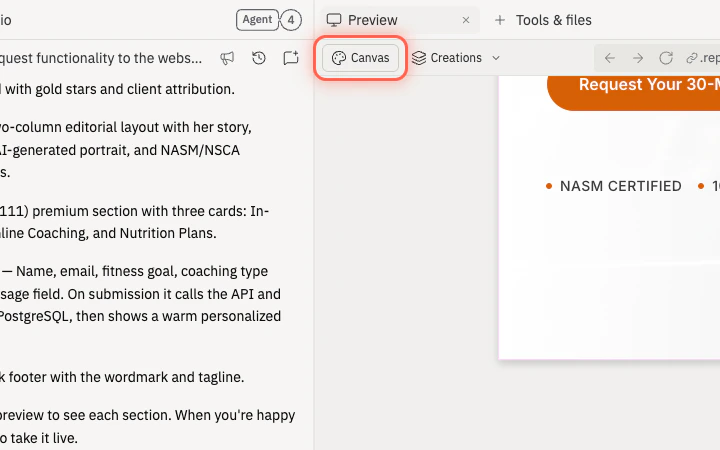
Select the **Canvas** button under the Preview and Tools tabs to switch the right pane from Preview to Canvas.
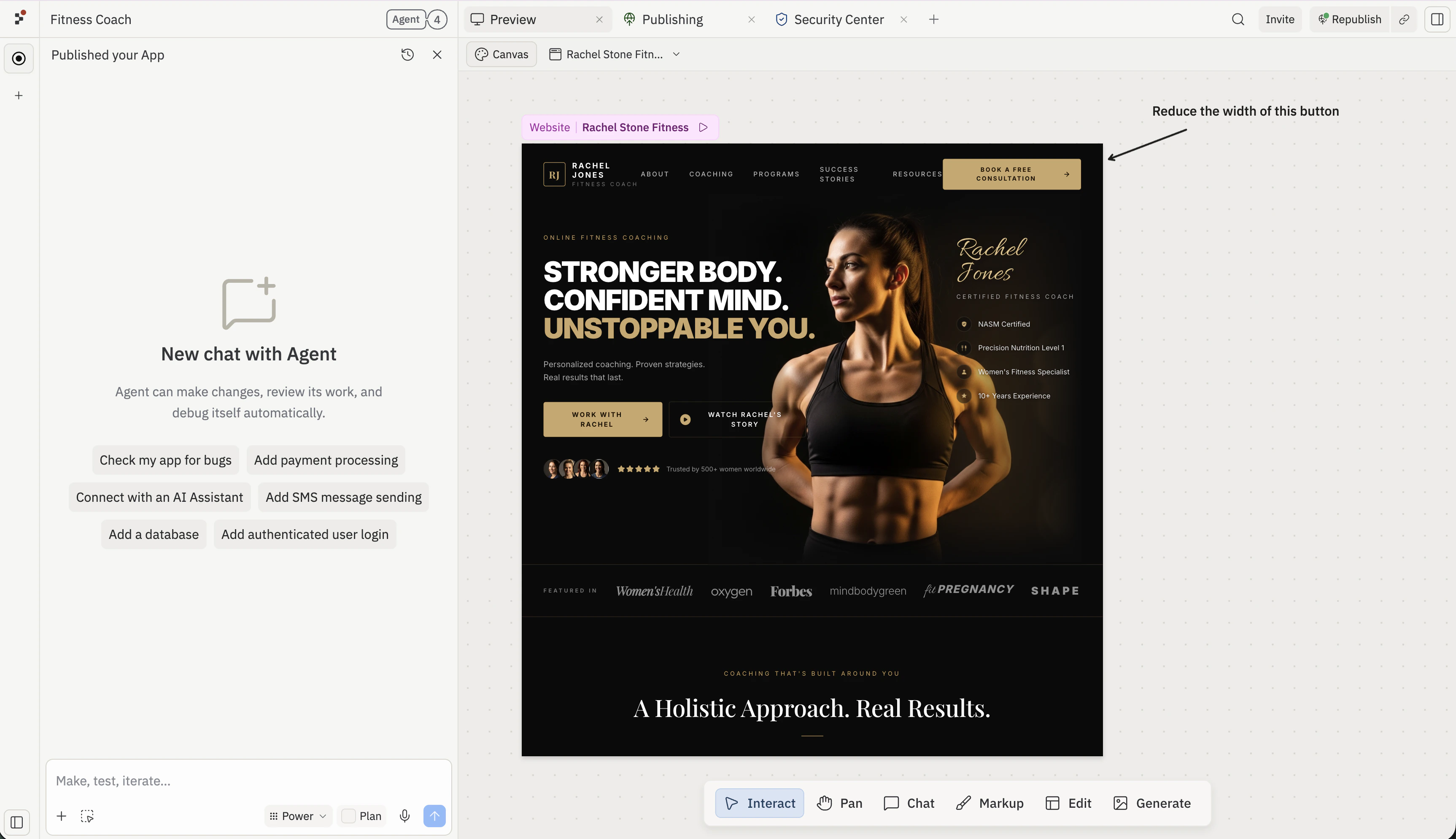
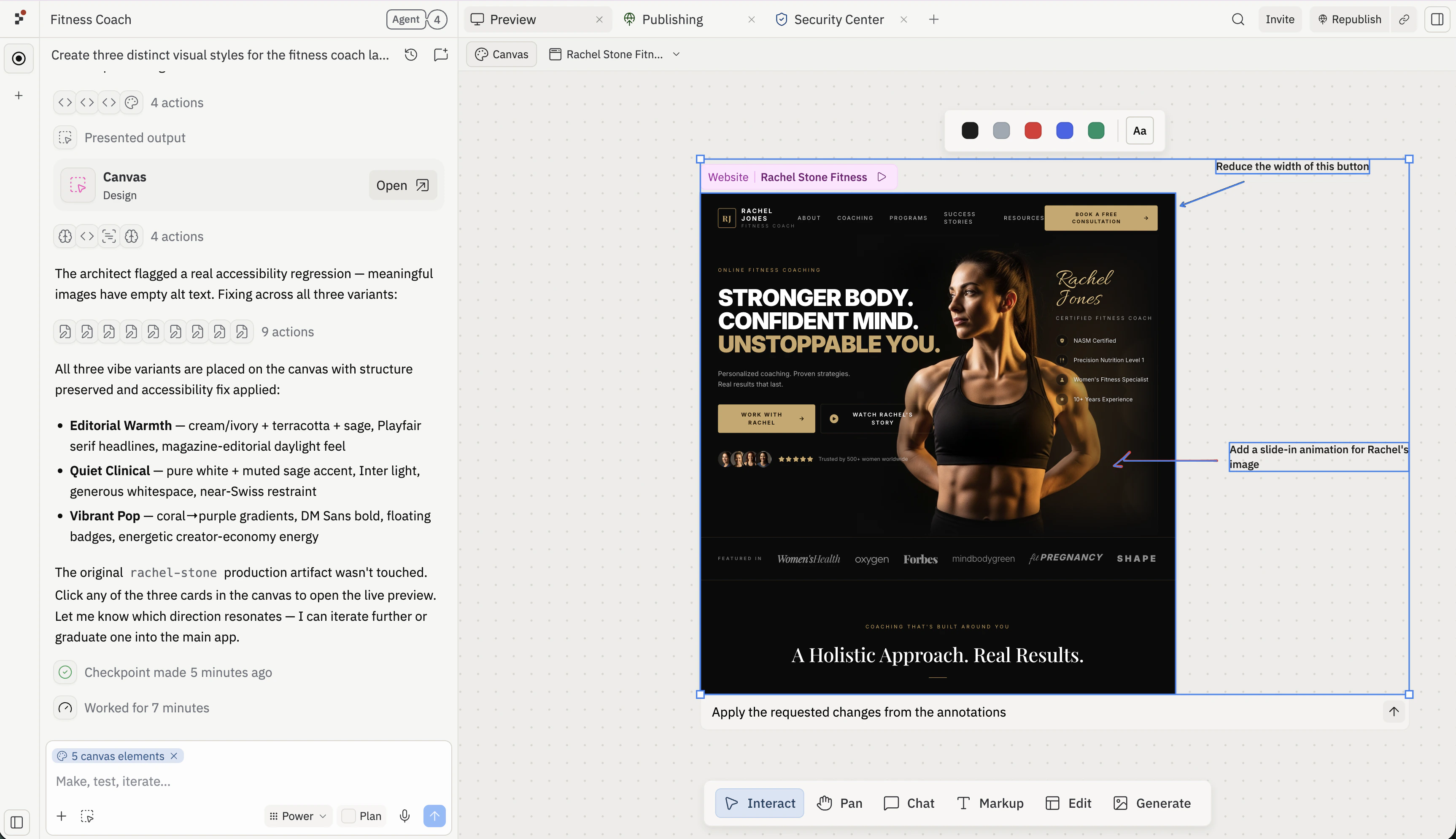
Use the Canvas **Text** and **Draw** tools to add notes and arrows in the empty space around the mockup, then point them at the specific element you want Agent to change. Annotations placed on the canvas — outside the preview — stay attached to your feedback so Agent can read them together with the design.
Keep each annotation focused on one change. Short, specific notes ("Reduce the width of this button") work better than open-ended feedback.
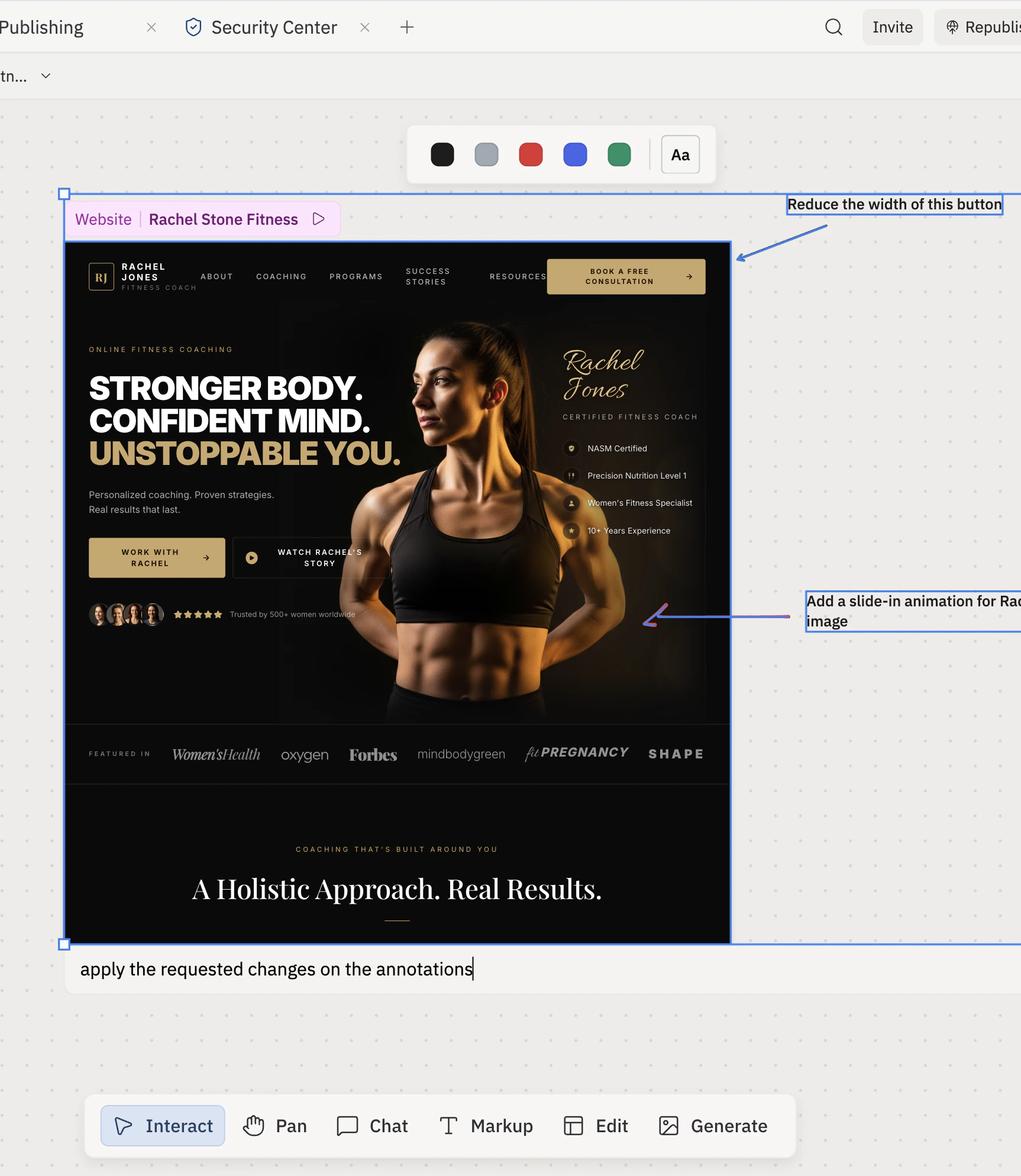
Marquee-select your annotations together with the preview frame, type a short prompt in **Chat about selected items**, and send it. Agent reads the annotations and the design as one piece of context, so it knows which element each note refers to.
Keep the chat message general — something like "Apply the changes from the annotations." Let the annotations carry the specifics.
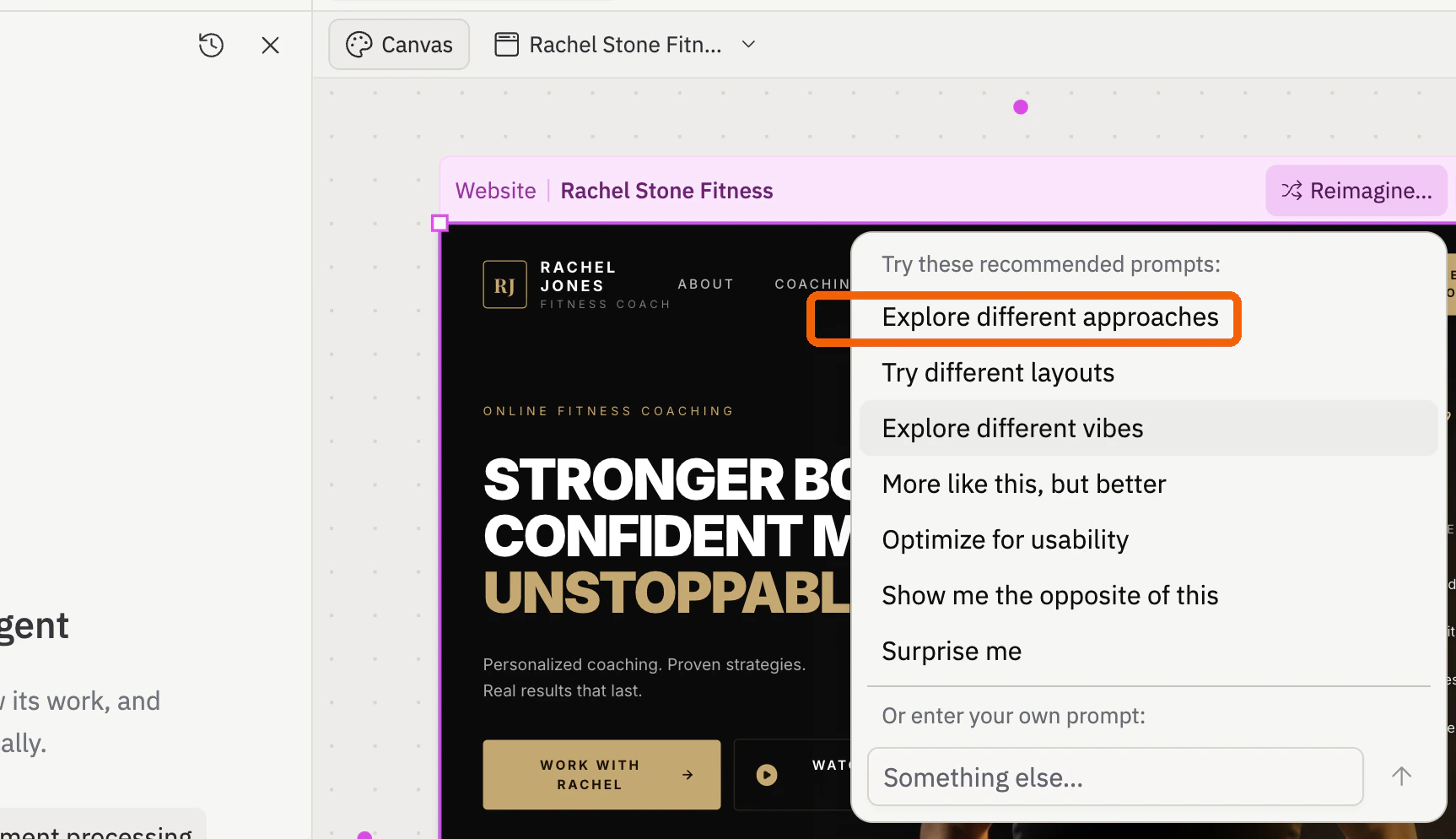
Click the design on Canvas, select **Reimagine**, then choose **Explore different approaches** to ask Agent for alternate visual directions.
Wait for Agent to finish generating. **Explore different approaches** updates the same artifact with new variants — switch between them from the artifact dropdown above the mockup. **Explore different vibes** generates separate visual mockups that appear on the canvas next to the original.
Once the variants land, pick a direction and keep iterating. Add another annotation on the chosen frame, marquee-select it together with the design, and send a new request — for example, "Apply the requested changes from the annotations." Agent uses the variant context plus your fresh annotations as one prompt.
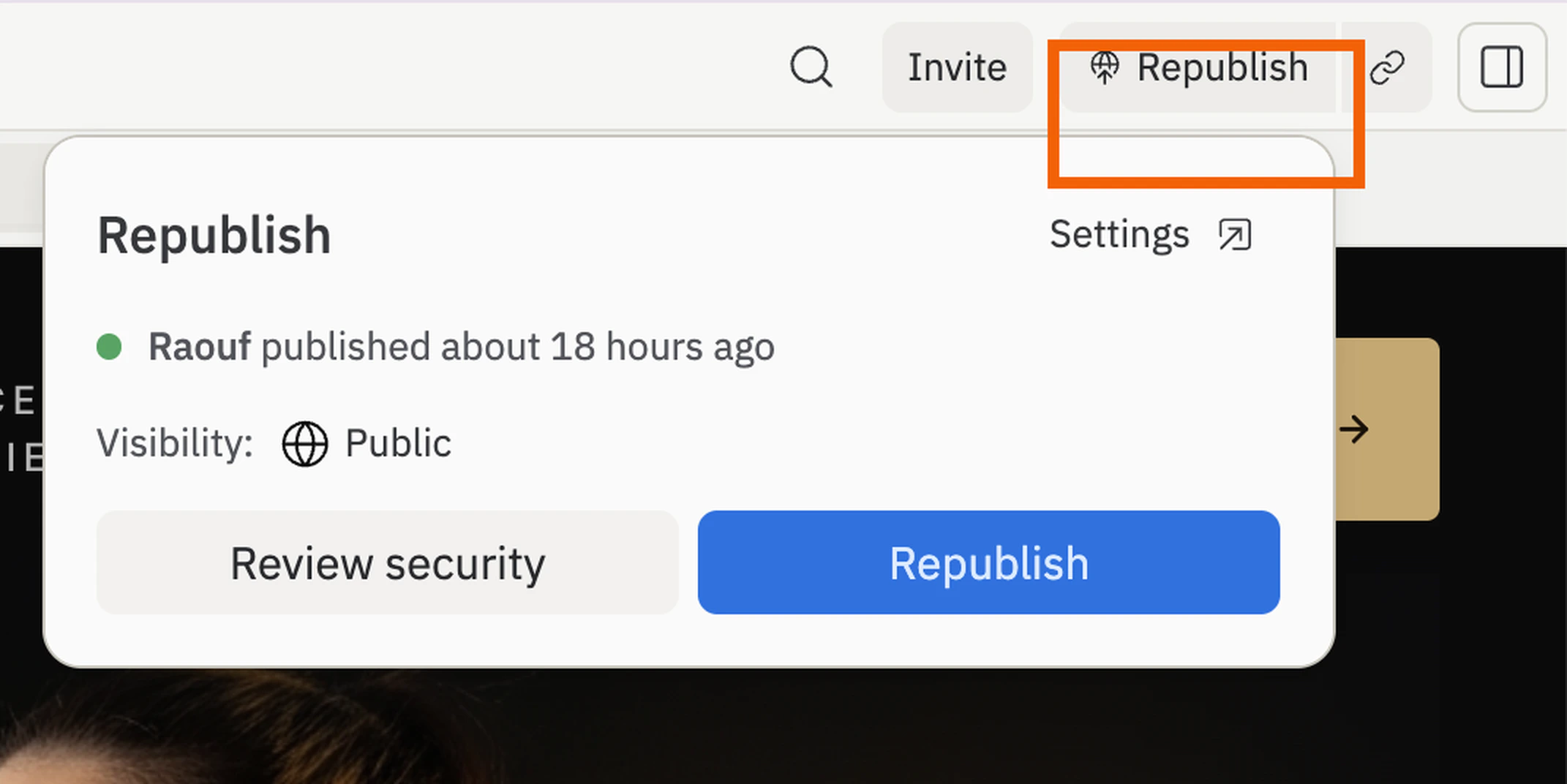
When the page works in Preview, click **Publish** (or **Republish** on subsequent deploys) in the top-right of the workspace to push the latest version to your public URL. Open the published URL in a new tab and submit one test response to confirm the live page captures it before sharing.
## Next steps
Send follow-up emails or sync responses to a CRM.
Give the page a branded campaign URL before sharing it.
Store more structured responses you can sort and export.
Create a second variant and compare messaging head-to-head — change one element per round so you know what moved the needle.
## Related
* [Add integrations](/build/add-integrations)
* [Add a custom domain](/build/add-custom-domain)