> ## Documentation Index
> Fetch the complete documentation index at: https://docs.replit.com/llms.txt
> Use this file to discover all available pages before exploring further.
# Improve your app's SEO
> Use Replit's SEO rating and Agent to make your published app rank higher in search engines.
export const AiPrompt = ({children}) => {
return
{children}
;
};
By the end, your published app will rank higher in search engines — and the SEO rating in the Publishing tool will reflect it.
After every successful publish, Replit runs an SEO audit and shows an SEO rating. If the rating has room to grow, one click hands the specific issues to Agent. For most builders, the workflow is just: **publish → glance at the rating → ask Agent to optimize**.
For details on how the rating is calculated (Lighthouse audit, what each rating means, supported deployment types), see [SEO Rating](/references/publishing/seo-rating).
## Optimize with SEO Agent
[SEO Agent](/references/publishing/seo-agent) runs a technical SEO audit on your published app and turns each finding into a one-click fix. It lives in the **Growth** pane in the Project Editor and is available to builders on a paid plan. Follow these steps to scan your app and apply the fixes.
SEO Agent works on a published app. Until you publish, the **Growth** pane is locked and prompts you to **Go to Publishing**. Publish from the Agent chat or the **Publishing** tool, then return to the Growth pane.
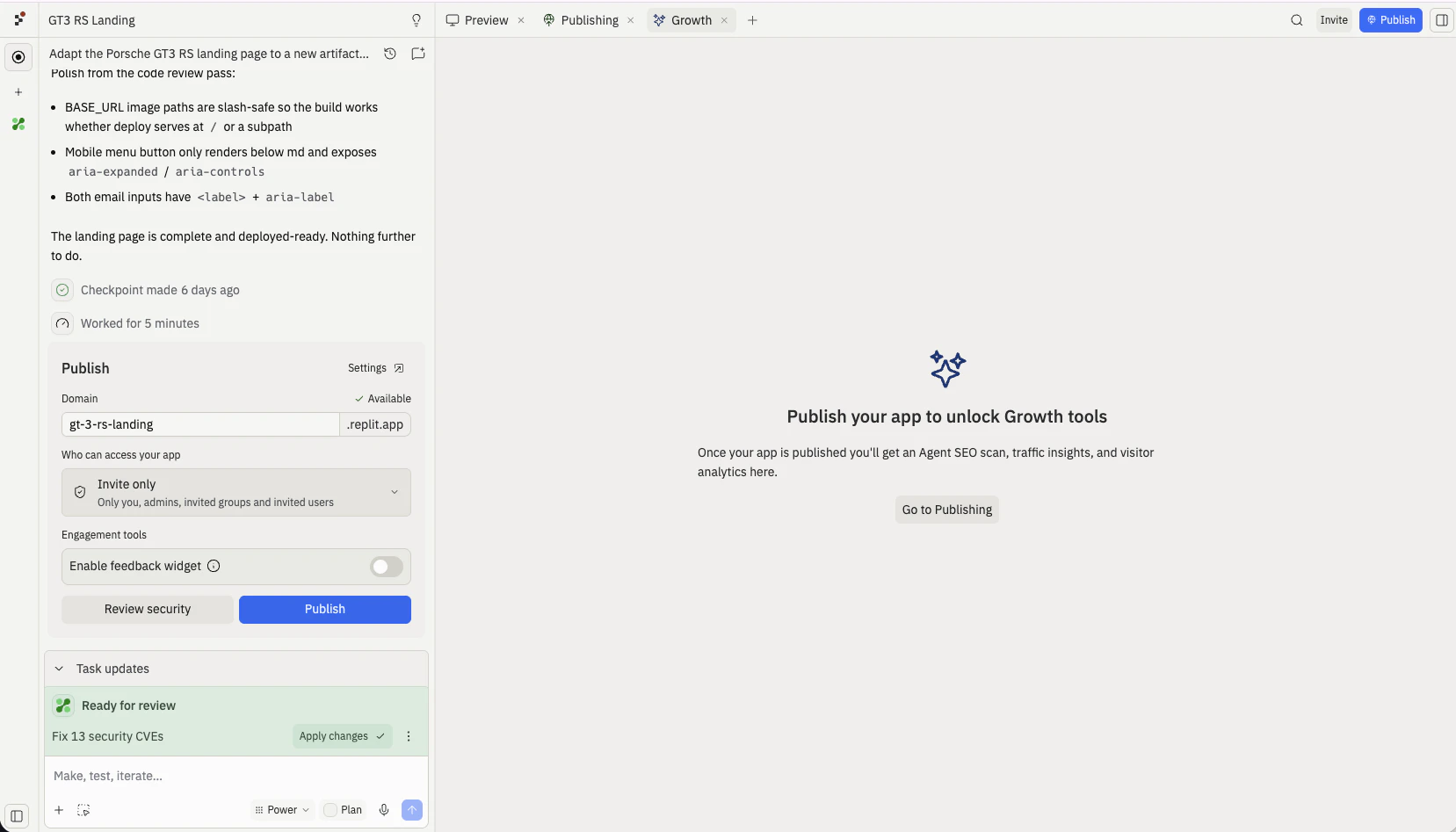 Open the **Growth** pane and find the **SEO Rating** card. Select **Run scan with Agent** to start a technical SEO audit of your project. A scan usually takes a few minutes.
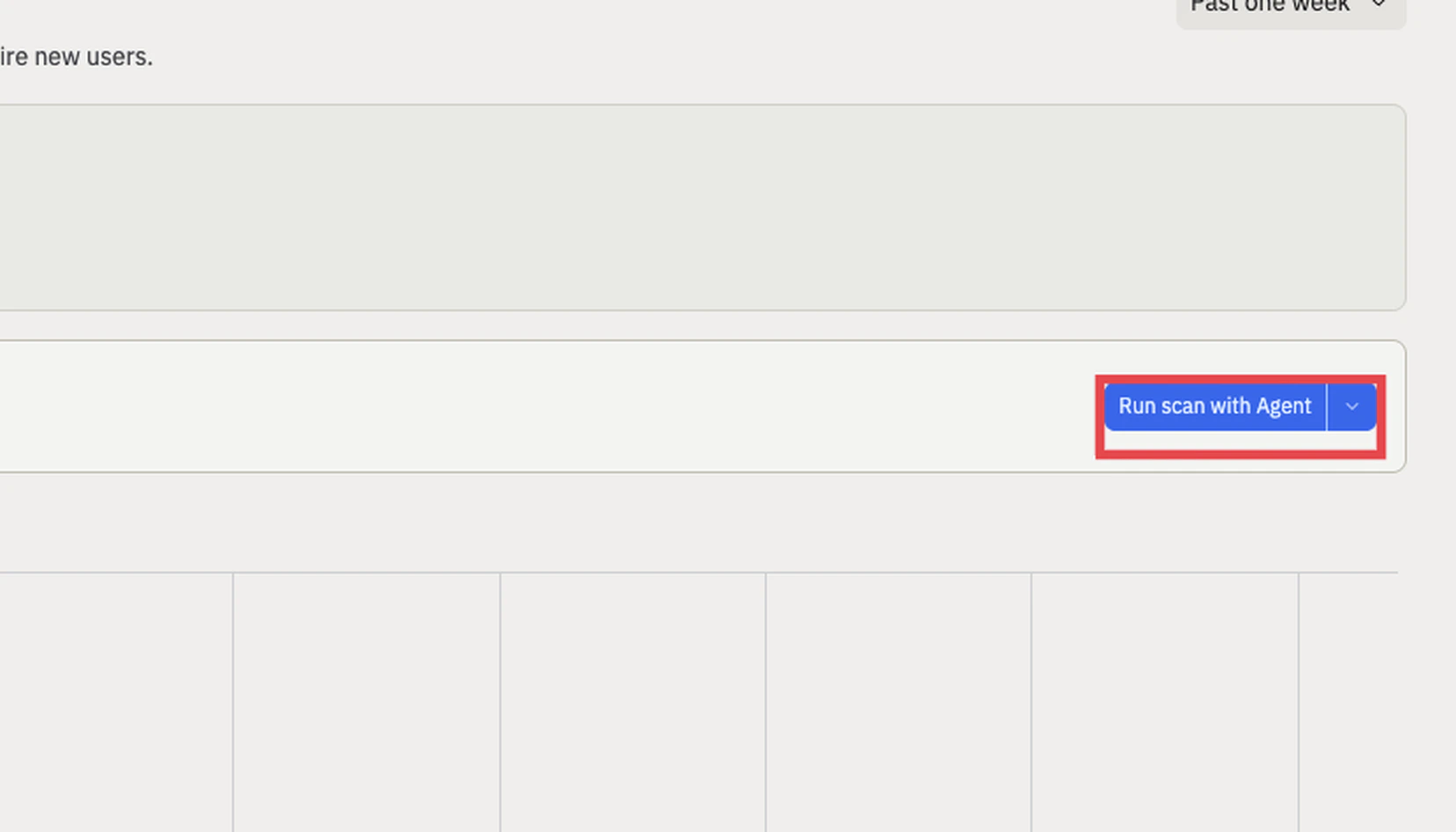 When the scan finishes, the issues appear in a table with **Severity** (Low, Medium, or High) and **Status** (Unresolved) columns, grouped into categories such as **AI Readiness**, **Crawlability & Discovery**, **Landing Page Rendering & Metadata**, and **Performance Proxies**. Expand any issue to read what SEO Agent found.
Apply fixes at whatever granularity you want:
* **Fix with Agent** on a single issue hands just that item to Agent.
* **Fix with Agent** on a category fixes every issue in that group.
* **Fix all with Agent** sends every issue to Agent at once. The **Fix all issues** button in the chat does the same thing.
When the scan finishes, the issues appear in a table with **Severity** (Low, Medium, or High) and **Status** (Unresolved) columns, grouped into categories such as **AI Readiness**, **Crawlability & Discovery**, **Landing Page Rendering & Metadata**, and **Performance Proxies**. Expand any issue to read what SEO Agent found.
Apply fixes at whatever granularity you want:
* **Fix with Agent** on a single issue hands just that item to Agent.
* **Fix with Agent** on a category fixes every issue in that group.
* **Fix all with Agent** sends every issue to Agent at once. The **Fix all issues** button in the chat does the same thing.
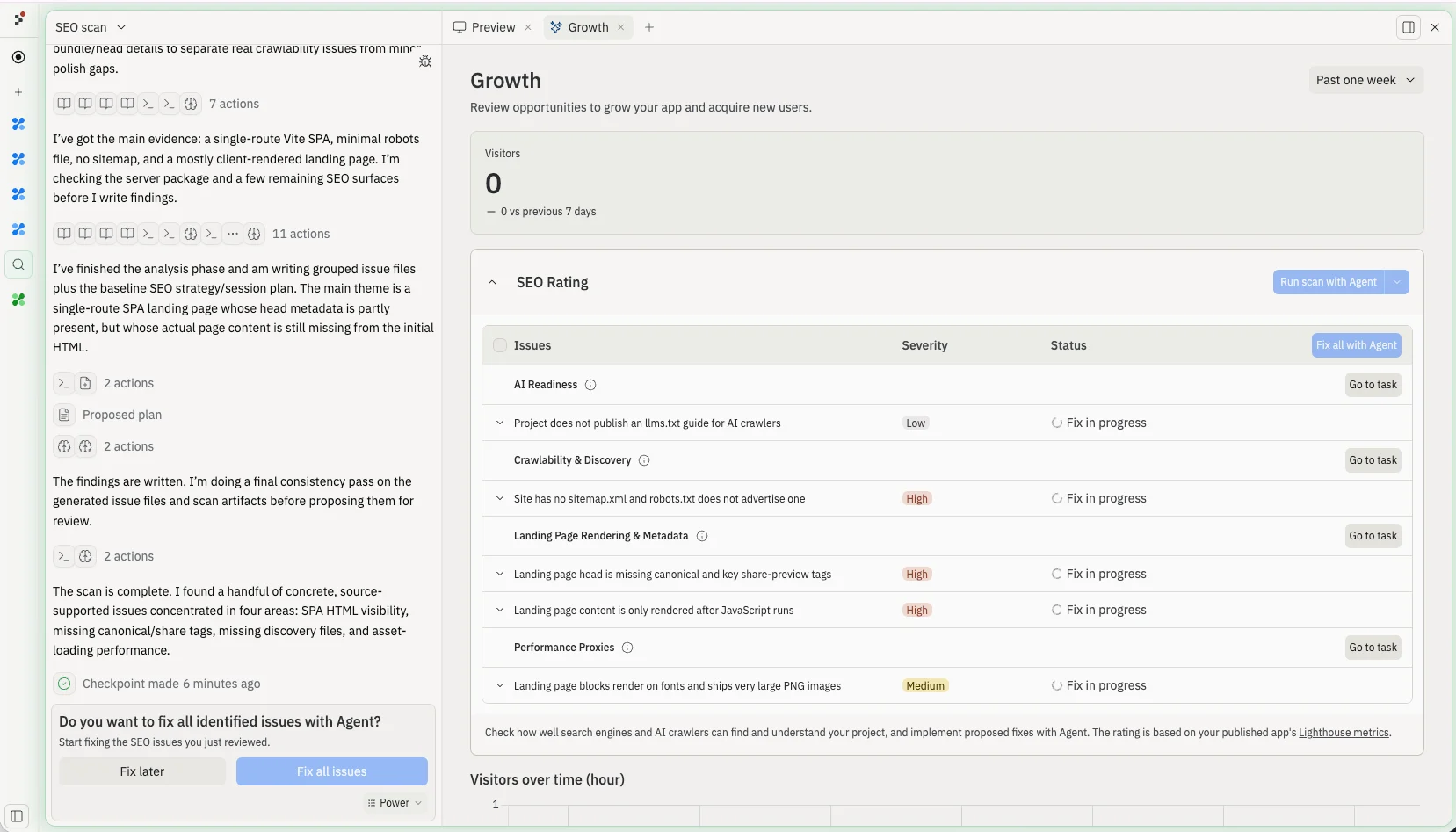
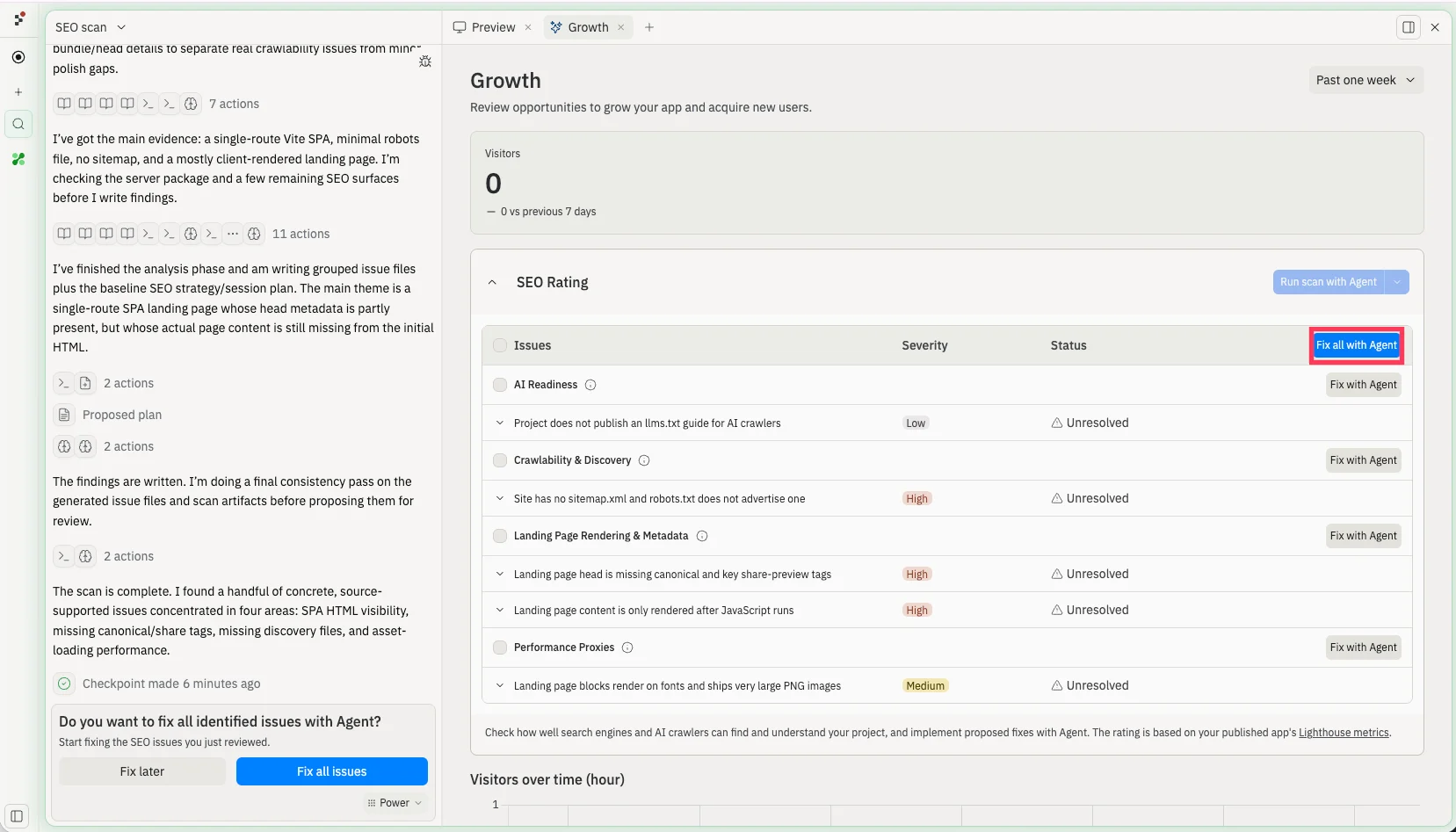 Agent spins up a fix task for each issue and works through them in the background, so you can keep building. Rows update to **Fix in progress**, and a **Go to task** link lets you open any task to follow along.
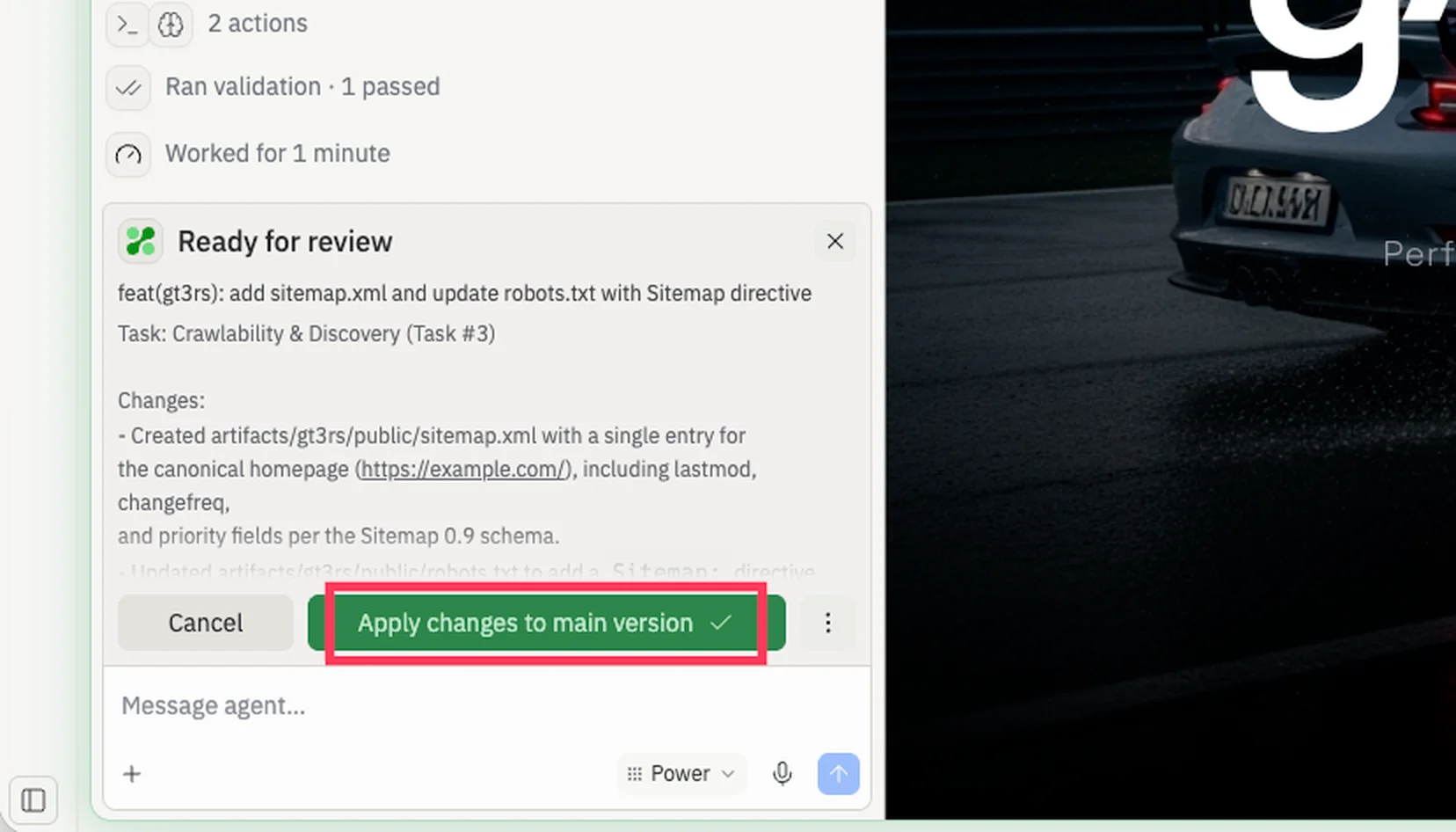
 When a fix is ready, the task shows a **Ready for review** state. Review the changes, then select the green **Apply changes to main version** button to merge the fix into your app. Republish to refresh your SEO Rating against the new build.
 You can also skip the scan UI entirely. Open Agent and say **"optimize my
SEO"** — Agent will pick up your latest results and start working through
them.
Common fixes Agent will apply:
* Add or rewrite missing or generic `` tags so each page has a unique, descriptive title.
* Add a meta description to every page.
* Add descriptive `alt` text to images.
* Set the `lang` attribute on the `<html>` element.
* Make sure links have discernible text (no "click here" or empty anchors).
* Add a `robots.txt` and a `sitemap.xml`.
* Add a viewport meta tag for mobile rendering.
* Improve color contrast on text that fails accessibility checks.
* Add Open Graph and Twitter card meta tags so links to your app preview well on social platforms.
## Best practices for an SEO-optimized app
Whether you ask Agent to handle these for you or write them yourself, these are the highest-leverage things to get right:
* **Give every page a unique title and meta description.** Aim for titles under 60 characters and descriptions around 150–160 characters.
* **Use semantic HTML.** Wrap your layout in `<main>`, `<header>`, `<nav>`, and `<footer>`. Use `<h1>` once per page and step heading levels in order.
* **Add alt text to every image.** Describe what the image shows, not just what it is.
* **Generate a `sitemap.xml` and `robots.txt`.** Ask Agent to create both so search engines know what to crawl.
* **Add Open Graph and Twitter card tags.** Control how your app looks when shared on social media.
* **Use a custom domain.** A branded domain builds trust with both visitors and search engines. See [Add a custom domain](/build/add-custom-domain).
* **Pick the right deployment type.** For content-heavy sites, [Static Deployments](/references/publishing/static-deployments) deliver pre-rendered HTML that search engines parse instantly.
* **Add structured data.** JSON-LD markup helps search engines show rich results for products, articles, FAQs, and events.
* **Keep your app fast.** Optimize images, avoid render-blocking scripts, and lean on Replit's hosting to keep response times low.
A simple way to apply most of these in one shot:
<AiPrompt>
Audit my site for SEO best practices and apply the fixes. Add a sitemap,
robots.txt, Open Graph tags, structured data where it makes sense, and make
sure every page has a unique title and meta description.
</AiPrompt>
## Improve it next
<CardGroup cols={2}>
<Card title="SEO Agent" icon="robot" href="/references/publishing/seo-agent">
Run a technical SEO audit and apply one-click fixes for crawlability,
metadata, and structured data.
</Card>
<Card title="SEO Rating" icon="magnifying-glass-chart" href="/references/publishing/seo-rating">
See exactly how the rating is calculated, what each rating means, and which
deployment types support it.
</Card>
<Card title="Add a custom domain" icon="globe" href="/build/add-custom-domain">
Move your app to your own domain — a branded URL builds trust with both
visitors and search engines.
</Card>
<Card title="Static Deployments" icon="file-code" href="/references/publishing/static-deployments">
The best deployment type for content-heavy, SEO-critical sites.
</Card>
<Card title="Publishing Geography" icon="globe-pointer" href="/references/publishing/publishing-geography">
Choose where your app runs to keep response times low for your audience.
</Card>
</CardGroup>
## Need further help?
* **The rating didn't update after a republish:** wait a minute or two — the audit runs asynchronously after the deployment goes live, and the badge refreshes when results land.
* **The rating is the same after Agent's changes:** ask Agent which specific Lighthouse items it addressed, then check the badge tooltip for the items that are still flagged.
* **Some pages have a lower rating than others:** the badge surfaces the lowest rating across all crawled URLs. Ask Agent to focus on the specific page Lighthouse flagged.
* **You don't see a rating on a published app:** SEO ratings only run for public web-facing deployment types (Autoscale, Reserved VM, Static). Scheduled and private deployments don't produce a rating.
You can also skip the scan UI entirely. Open Agent and say **"optimize my
SEO"** — Agent will pick up your latest results and start working through
them.
Common fixes Agent will apply:
* Add or rewrite missing or generic `` tags so each page has a unique, descriptive title.
* Add a meta description to every page.
* Add descriptive `alt` text to images.
* Set the `lang` attribute on the `<html>` element.
* Make sure links have discernible text (no "click here" or empty anchors).
* Add a `robots.txt` and a `sitemap.xml`.
* Add a viewport meta tag for mobile rendering.
* Improve color contrast on text that fails accessibility checks.
* Add Open Graph and Twitter card meta tags so links to your app preview well on social platforms.
## Best practices for an SEO-optimized app
Whether you ask Agent to handle these for you or write them yourself, these are the highest-leverage things to get right:
* **Give every page a unique title and meta description.** Aim for titles under 60 characters and descriptions around 150–160 characters.
* **Use semantic HTML.** Wrap your layout in `<main>`, `<header>`, `<nav>`, and `<footer>`. Use `<h1>` once per page and step heading levels in order.
* **Add alt text to every image.** Describe what the image shows, not just what it is.
* **Generate a `sitemap.xml` and `robots.txt`.** Ask Agent to create both so search engines know what to crawl.
* **Add Open Graph and Twitter card tags.** Control how your app looks when shared on social media.
* **Use a custom domain.** A branded domain builds trust with both visitors and search engines. See [Add a custom domain](/build/add-custom-domain).
* **Pick the right deployment type.** For content-heavy sites, [Static Deployments](/references/publishing/static-deployments) deliver pre-rendered HTML that search engines parse instantly.
* **Add structured data.** JSON-LD markup helps search engines show rich results for products, articles, FAQs, and events.
* **Keep your app fast.** Optimize images, avoid render-blocking scripts, and lean on Replit's hosting to keep response times low.
A simple way to apply most of these in one shot:
<AiPrompt>
Audit my site for SEO best practices and apply the fixes. Add a sitemap,
robots.txt, Open Graph tags, structured data where it makes sense, and make
sure every page has a unique title and meta description.
</AiPrompt>
## Improve it next
<CardGroup cols={2}>
<Card title="SEO Agent" icon="robot" href="/references/publishing/seo-agent">
Run a technical SEO audit and apply one-click fixes for crawlability,
metadata, and structured data.
</Card>
<Card title="SEO Rating" icon="magnifying-glass-chart" href="/references/publishing/seo-rating">
See exactly how the rating is calculated, what each rating means, and which
deployment types support it.
</Card>
<Card title="Add a custom domain" icon="globe" href="/build/add-custom-domain">
Move your app to your own domain — a branded URL builds trust with both
visitors and search engines.
</Card>
<Card title="Static Deployments" icon="file-code" href="/references/publishing/static-deployments">
The best deployment type for content-heavy, SEO-critical sites.
</Card>
<Card title="Publishing Geography" icon="globe-pointer" href="/references/publishing/publishing-geography">
Choose where your app runs to keep response times low for your audience.
</Card>
</CardGroup>
## Need further help?
* **The rating didn't update after a republish:** wait a minute or two — the audit runs asynchronously after the deployment goes live, and the badge refreshes when results land.
* **The rating is the same after Agent's changes:** ask Agent which specific Lighthouse items it addressed, then check the badge tooltip for the items that are still flagged.
* **Some pages have a lower rating than others:** the badge surfaces the lowest rating across all crawled URLs. Ask Agent to focus on the specific page Lighthouse flagged.
* **You don't see a rating on a published app:** SEO ratings only run for public web-facing deployment types (Autoscale, Reserved VM, Static). Scheduled and private deployments don't produce a rating.