> ## Documentation Index
> Fetch the complete documentation index at: https://docs.replit.com/llms.txt
> Use this file to discover all available pages before exploring further.
# Turn a Figma design into an interactive app
> Import a Figma frame into Replit, turn it into a React app, test the result, and refine it into an interactive experience.
export const AiPrompt = ({children}) => {
return
{children}
;
};
⏰ *Estimated time: 15 minutes*
A Figma design shows what the experience should look like. Replit can turn a Figma frame into a React app that you can test, refine, and share.
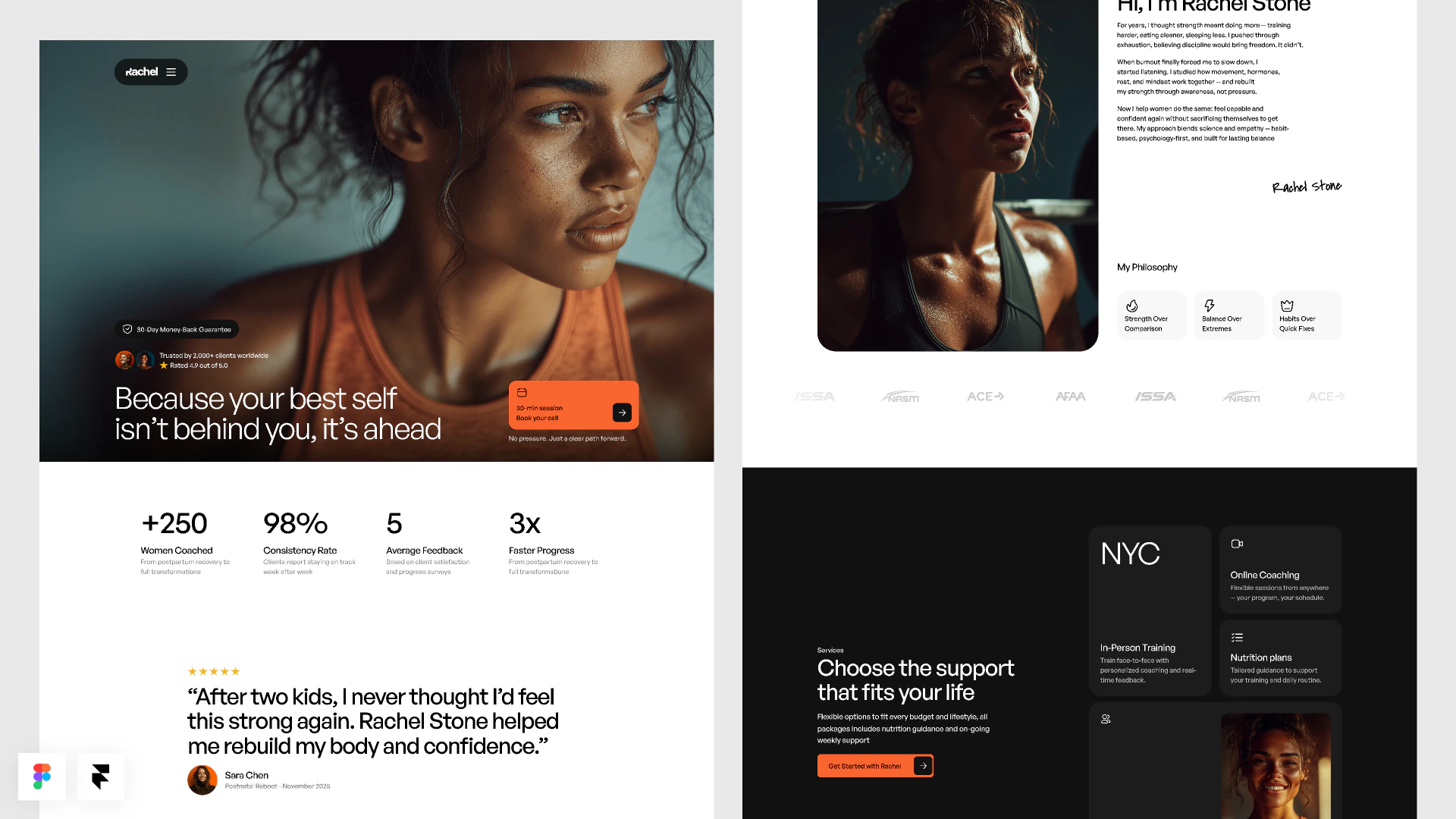
You will use **FitStart** as the example: a Figma frame for a fitness tracker dashboard that needs a working workout form, progress card, weekly goal, and mobile layout.
 ## What you'll learn
You will learn how to:
* Prepare a Figma frame for better import results.
* Import a Figma frame into Replit.
* Check what Replit preserved from the design.
* Refine behavior, responsiveness, and polish after import.
* Use Agent, Canvas, and the Visual Editor when the imported app needs changes.
## Before you start
You need:
* A [Replit account](https://replit.com).
* A Figma file with the frame you want to import.
* Access to connect your Figma account.
* The URL for the exact Figma frame you want to turn into an app.
Figma import limits are set by Figma — for exact limits and account requirements, check Figma's own developer documentation.
## Import the Figma frame
Use the Replit import flow to turn the frame into a React app.
## What you'll learn
You will learn how to:
* Prepare a Figma frame for better import results.
* Import a Figma frame into Replit.
* Check what Replit preserved from the design.
* Refine behavior, responsiveness, and polish after import.
* Use Agent, Canvas, and the Visual Editor when the imported app needs changes.
## Before you start
You need:
* A [Replit account](https://replit.com).
* A Figma file with the frame you want to import.
* Access to connect your Figma account.
* The URL for the exact Figma frame you want to turn into an app.
Figma import limits are set by Figma — for exact limits and account requirements, check Figma's own developer documentation.
## Import the Figma frame
Use the Replit import flow to turn the frame into a React app.
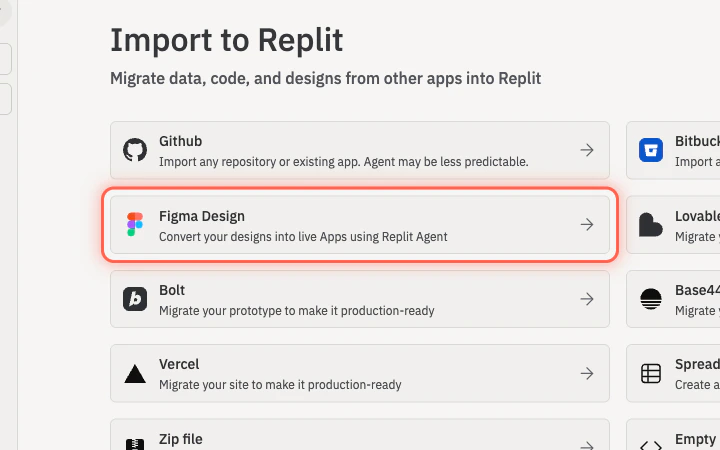 Go to [replit.com/import](https://replit.com/import).
Choose **Figma Design** and connect your Figma account.
In Figma, select the exact frame you want to import and copy its URL.
Paste the frame URL into Replit and select **Import**.
### Or attach Figma directly to a prompt
If you'd rather hand the frame to Agent alongside a build prompt, use the prompt composer's attachment menu instead of the import wizard.
Go to [replit.com](https://replit.com). The prompt composer is on the home screen.
Select the **+** button on the prompt composer to open the **Add attachment** menu.
Go to [replit.com/import](https://replit.com/import).
Choose **Figma Design** and connect your Figma account.
In Figma, select the exact frame you want to import and copy its URL.
Paste the frame URL into Replit and select **Import**.
### Or attach Figma directly to a prompt
If you'd rather hand the frame to Agent alongside a build prompt, use the prompt composer's attachment menu instead of the import wizard.
Go to [replit.com](https://replit.com). The prompt composer is on the home screen.
Select the **+** button on the prompt composer to open the **Add attachment** menu.
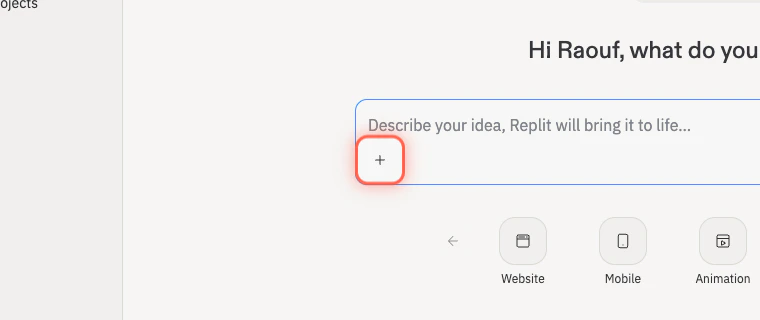 Pick **Import a Figma design** and paste the URL of the exact Figma frame you want to build from.
Type a short prompt that tells Agent what to do with the design — for example, what should be interactive, what should stay close to the visuals, and what desktop and mobile behavior you expect. Submit when ready.
Agent imports the frame and builds an interactive app based on your prompt. Test it in Preview when the build finishes.
Pick **Import a Figma design** and paste the URL of the exact Figma frame you want to build from.
Type a short prompt that tells Agent what to do with the design — for example, what should be interactive, what should stay close to the visuals, and what desktop and mobile behavior you expect. Submit when ready.
Agent imports the frame and builds an interactive app based on your prompt. Test it in Preview when the build finishes.
 ## What Replit imports
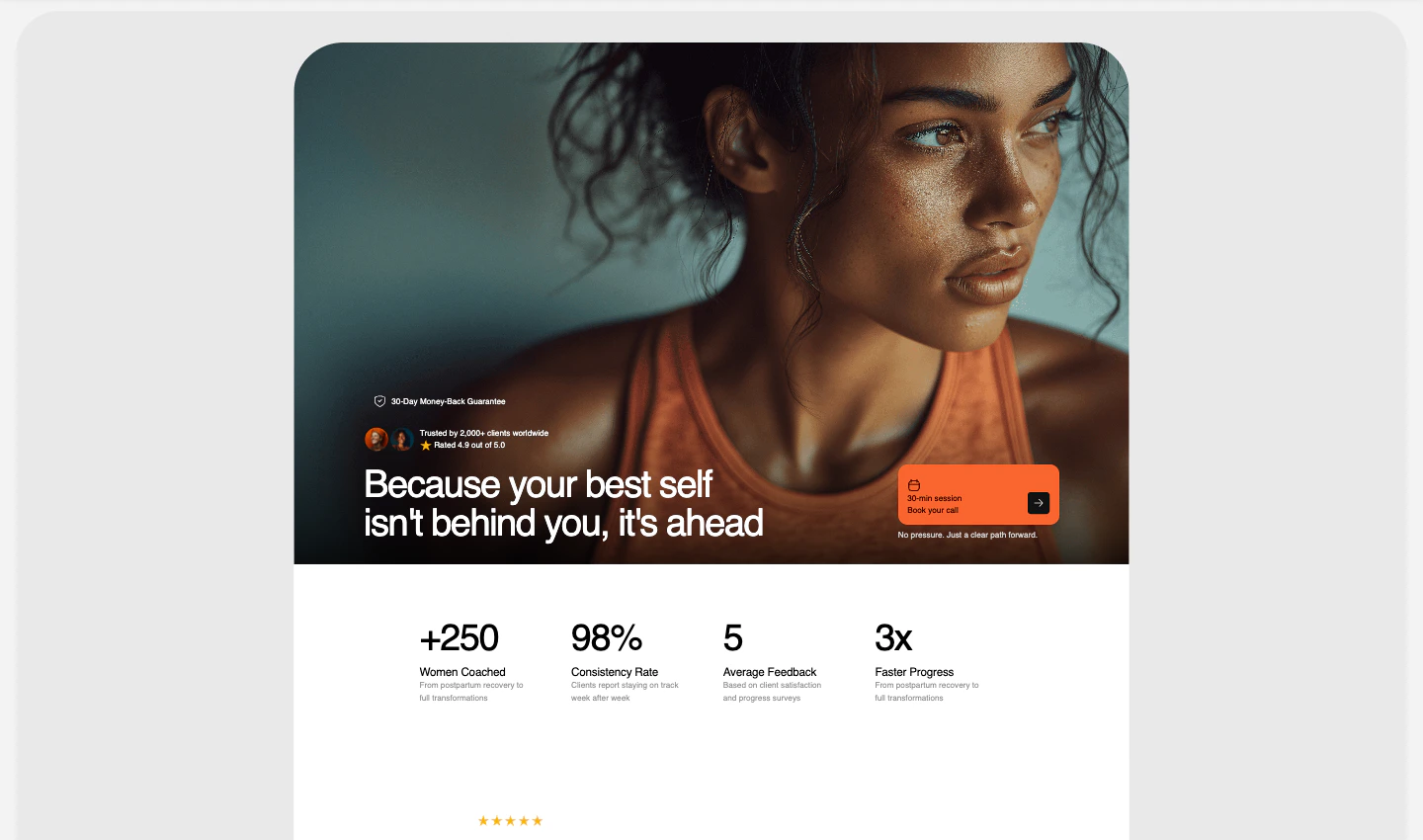
Replit uses the Figma frame to create a React project. The import can include:
* Theme and component styling.
* Images and icon assets.
* App scaffolding for a React project.
The import gives you a working starting point. You should still test behavior, responsiveness, and any interactions the design does not fully define.
## Check what Agent built
After import, open Preview and compare the app to the Figma frame.
## What Replit imports
Replit uses the Figma frame to create a React project. The import can include:
* Theme and component styling.
* Images and icon assets.
* App scaffolding for a React project.
The import gives you a working starting point. You should still test behavior, responsiveness, and any interactions the design does not fully define.
## Check what Agent built
After import, open Preview and compare the app to the Figma frame.
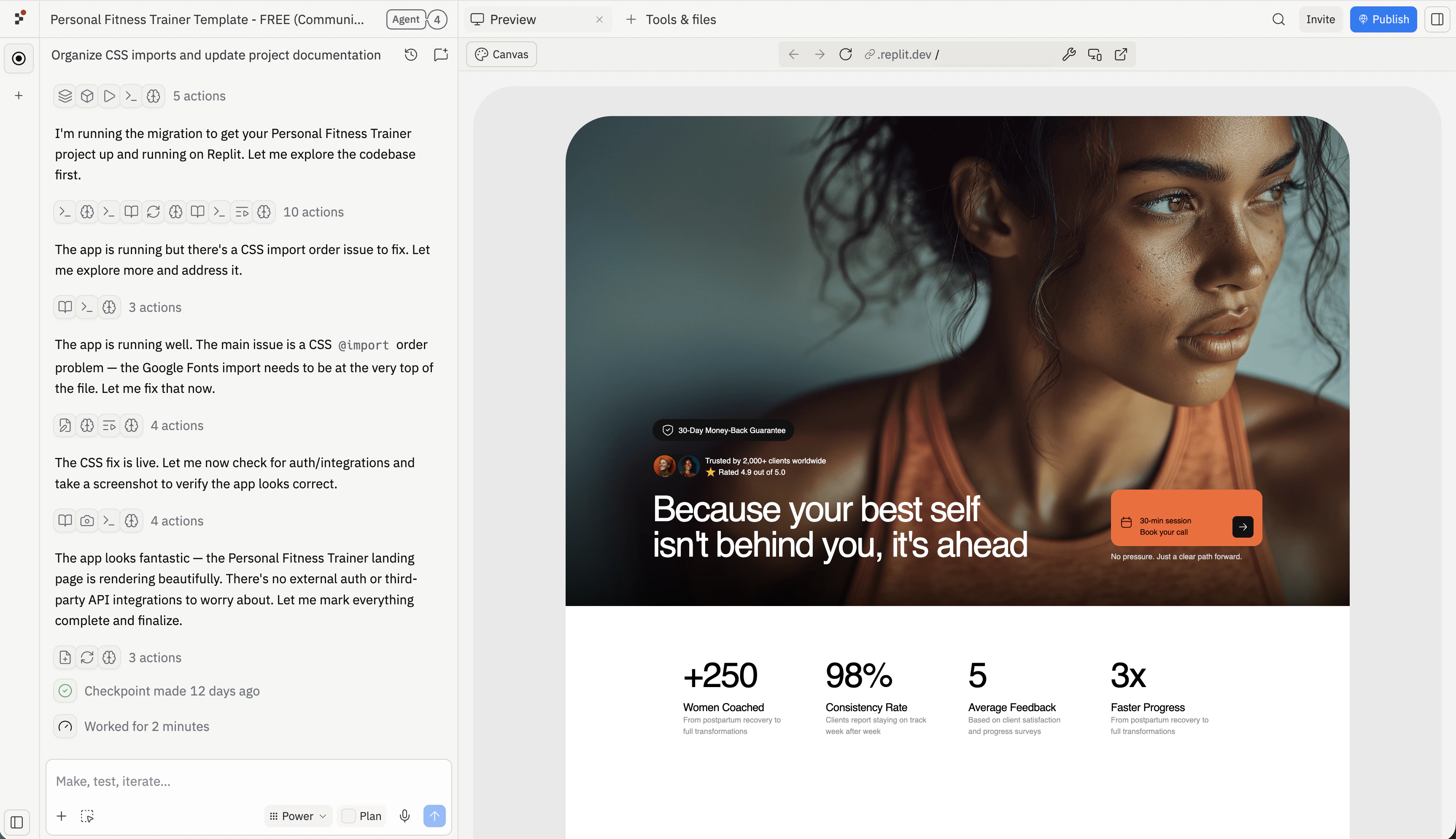 Visual checks:
* Layout matches the Figma frame closely enough.
* Colors, typography, spacing, and assets are preserved.
* Important images and icons appear.
* The app works at desktop and mobile sizes.
Interaction checks:
* Buttons and links do what you expect.
* Forms, menus, tabs, or navigation are present if needed.
* The app still works after refresh.
* Anything missing is clear enough to ask Agent to add.
## Refine the app after import
Some behavior may need to be added after import. Use Agent when the change affects interactions, data, multiple screens, or hidden logic.
For FitStart, ask Agent to make the imported design interactive:
Review this imported FitStart app.
Visual checks:
* Layout matches the Figma frame closely enough.
* Colors, typography, spacing, and assets are preserved.
* Important images and icons appear.
* The app works at desktop and mobile sizes.
Interaction checks:
* Buttons and links do what you expect.
* Forms, menus, tabs, or navigation are present if needed.
* The app still works after refresh.
* Anything missing is clear enough to ask Agent to add.
## Refine the app after import
Some behavior may need to be added after import. Use Agent when the change affects interactions, data, multiple screens, or hidden logic.
For FitStart, ask Agent to make the imported design interactive:
Review this imported FitStart app.
Keep the visual design close to the Figma frame.
Make the workout form interactive: a visitor should choose a workout type, enter minutes and a note, then add the workout.
After submission, update today's workout list and total minutes.
Preserve the desktop layout and improve the mobile layout if needed.
Use the [Visual Editor](/learn/design/visual-editor) when the change is mostly text, color, spacing, layout, or image polish.
Use [Canvas](/learn/design/canvas) when you want to annotate visual feedback, compare variants, or show what should change directly on the design.
### Compare layouts and annotate in Canvas
Canvas turns the imported app into a free-form board where you can ask Agent for alternate layouts and mark up the design with text and sketches.
Select **Canvas** in the workspace pane header to switch the right pane from Preview to Canvas.
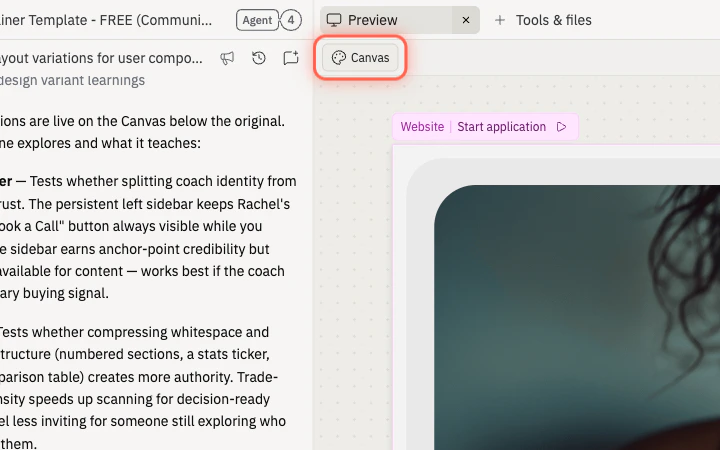 Click your imported mockup, select **Reimagine**, and choose **Try different layouts**. Agent suggests alternate layouts that keep the content but rearrange the visual hierarchy.
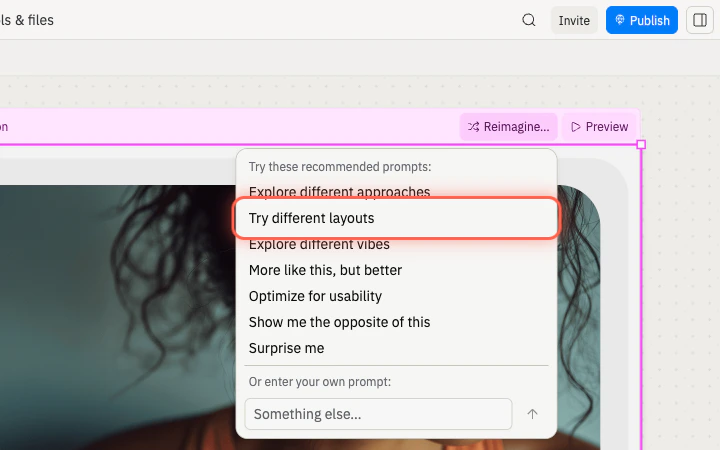 Wait for Agent to generate the alternates, then zoom out to review them next to the original mockup.
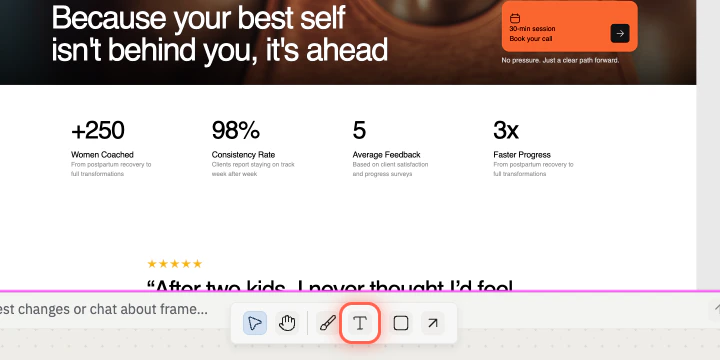
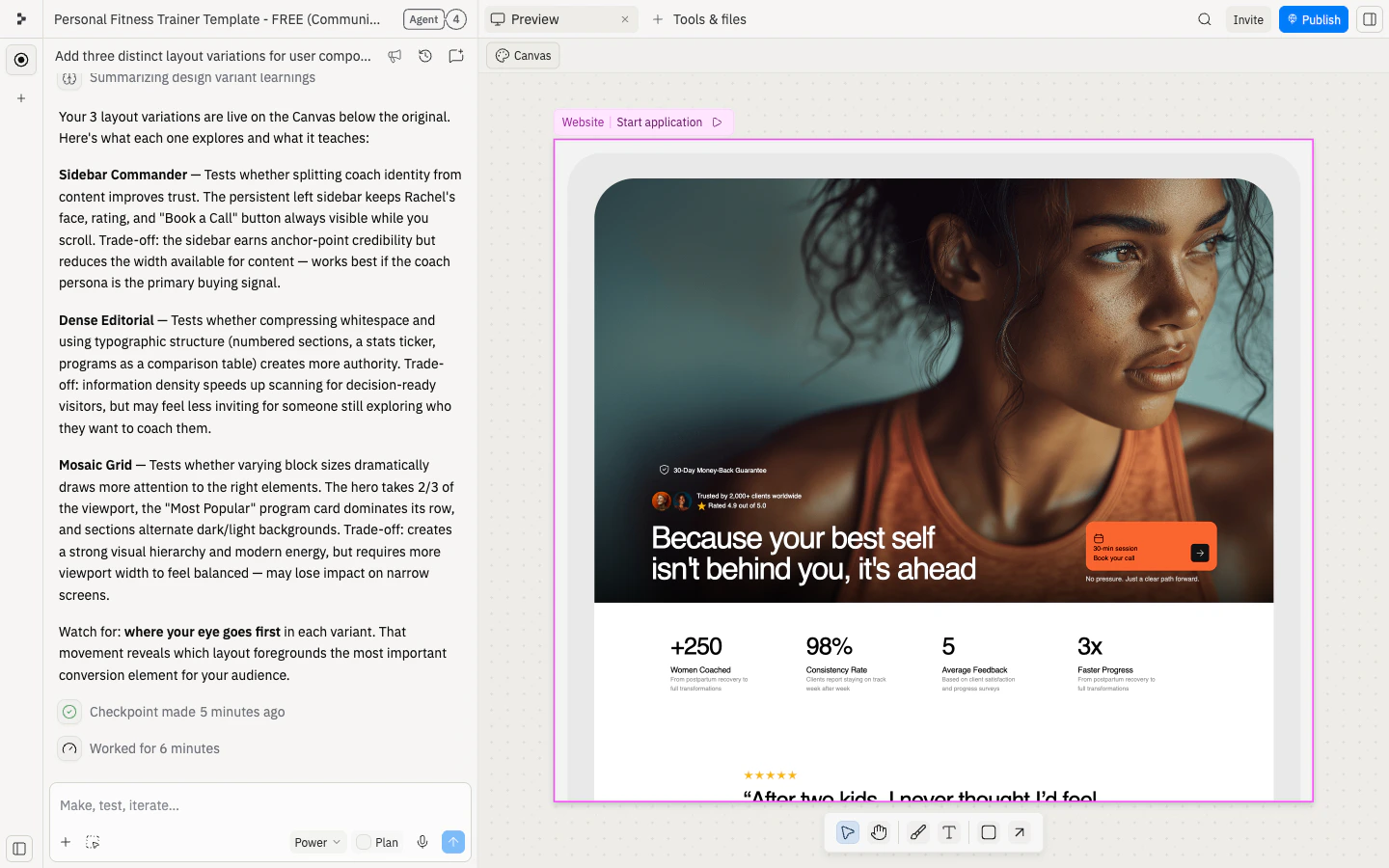 Use **Text** to add notes on the canvas.
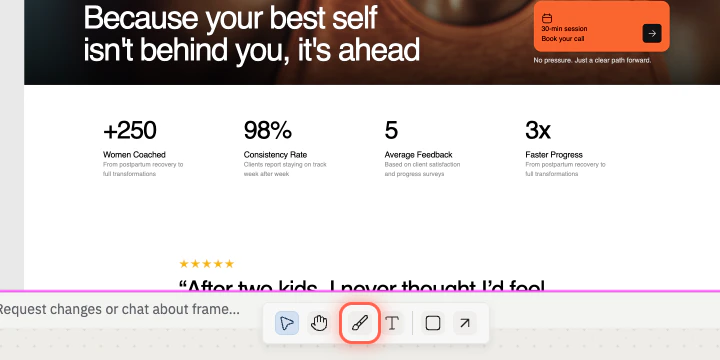
 Use **Draw** to sketch arrows or shapes that point at the parts you want to change.
 With the notes in place, ask Agent to apply the feedback to the imported app.
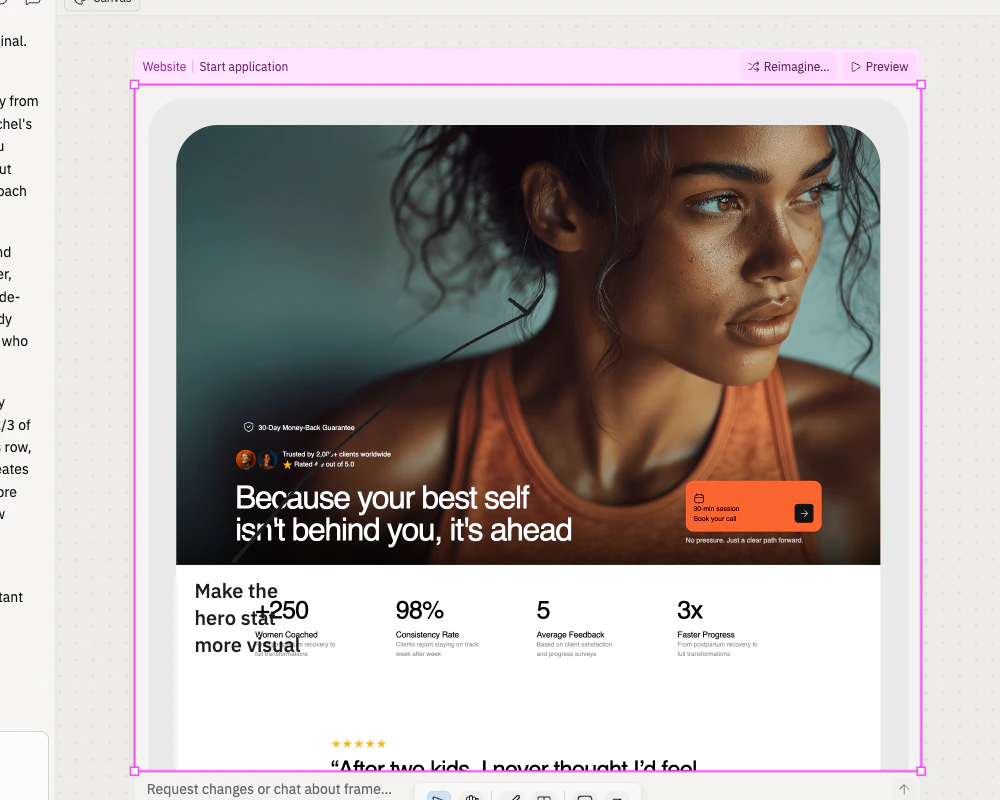 Use my Canvas annotations to refine the imported FitStart app.
Keep the workout form behavior unchanged.
Apply the notes to the progress card, weekly goal area, and mobile spacing only.
Then test that adding a workout still updates today's list and total minutes.
## Use Figma links in Agent when needed
After import, you can paste Figma links into Agent chat when you want Agent to inspect a specific frame or layer, extract design data, or compare the implementation against the design.
A Figma Dev or Full seat is recommended for Agent chat features. For details, see [Figma MCP Integration](/references/mcp/figma).
Congratulations on finishing the tutorial! You turned a Figma frame into an interactive Replit app and refined it into something you can share and test.
## Next steps
Polish small visual details like text, color, spacing, and images.
Compare visual directions and annotate feedback directly on the design.
Save form data so it persists across refreshes.
Put private screens behind authentication.
Give reviewers a public URL to try the app.
Invite teammates to build on the imported app together.
## Related
* [Figma MCP Integration](/references/mcp/figma)
* [Canvas](/learn/design/canvas)
* [Visual Editor](/learn/design/visual-editor)
## Credits
The example design used in this guide is the [Personal Fitness Trainer Template](https://www.figma.com/community/file/1569006333493544411) on Figma Community.