> ## Documentation Index
> Fetch the complete documentation index at: https://docs.replit.com/llms.txt
> Use this file to discover all available pages before exploring further.

# Connect via MCP

> Connect Replit Agent to external tools, data sources, and APIs through the Model Context Protocol (MCP) — sign in to a pre-listed server or add a custom one.

export const McpLinkGenerator = () => {
  const getLink = () => {
    if (typeof document === 'undefined') return 'https://replit.com/integrations?mcp=';
    const displayName = document.getElementById('mcp-display-name')?.value || 'My MCP Server';
    const baseUrl = document.getElementById('mcp-base-url')?.value || 'https://example.com/mcp';
    const payload = {
      displayName,
      baseUrl
    };
    const jsonString = JSON.stringify(payload);
    const encoded = btoa(unescape(encodeURIComponent(jsonString)));
    return `https://replit.com/integrations?mcp=${encoded}`;
  };
  const updateOutputs = () => {
    if (typeof document === 'undefined') return;
    const link = getLink();
    const badgeUrl = 'https://replit.com/badge?caption=Add%20to%20Replit';
    const badgeMarkdown = `[![Add to Replit](${badgeUrl})](${link})`;
    const linkEl = document.getElementById('mcp-link-output');
    const badgeMarkdownEl = document.getElementById('mcp-badge-markdown');
    if (linkEl) linkEl.textContent = link;
    if (badgeMarkdownEl) badgeMarkdownEl.textContent = badgeMarkdown;
  };
  const handleBadgeClick = e => {
    e.preventDefault();
    window.open(getLink(), '_blank');
  };
  return <div className="space-y-4">
      <div>
        <label htmlFor="mcp-display-name" className="block text-sm font-medium mb-1">Display name</label>
        <input type="text" id="mcp-display-name" placeholder="My MCP Server" onInput={updateOutputs} className="w-full px-3 py-2 border border-gray-300 dark:border-gray-700 rounded-md bg-white dark:bg-gray-900 text-gray-900 dark:text-gray-100" />
      </div>
      <div>
        <label htmlFor="mcp-base-url" className="block text-sm font-medium mb-1">Base URL</label>
        <input type="text" id="mcp-base-url" placeholder="https://example.com/mcp" onInput={updateOutputs} className="w-full px-3 py-2 border border-gray-300 dark:border-gray-700 rounded-md bg-white dark:bg-gray-900 text-gray-900 dark:text-gray-100" />
      </div>
      <div>
        <label className="block text-sm font-medium mb-1">Install link</label>
        <pre className="w-full p-3 bg-gray-100 dark:bg-gray-800 rounded-md text-sm break-all select-all cursor-text">
          <code id="mcp-link-output">https://replit.com/integrations?mcp=eyJkaXNwbGF5TmFtZSI6Ik15IE1DUCBTZXJ2ZXIiLCJiYXNlVXJsIjoiaHR0cHM6Ly9leGFtcGxlLmNvbS9tY3AifQ==</code>
        </pre>
      </div>
      <div>
        <label className="block text-sm font-medium mb-1">Badge preview</label>
        <Frame>
          <a href="#" onClick={handleBadgeClick} style={{
    cursor: 'pointer'
  }}>
            <img src="https://replit.com/badge?caption=Add%20to%20Replit" alt="Add to Replit badge" noZoom />
          </a>
        </Frame>
      </div>
      <div>
        <label className="block text-sm font-medium mb-1">Badge markdown</label>
        <pre className="w-full p-3 bg-gray-100 dark:bg-gray-800 rounded-md text-sm break-all select-all cursor-text">
          <code id="mcp-badge-markdown">[![Add to Replit](https://replit.com/badge?caption=Add%20to%20Replit)](https://replit.com/integrations?mcp=eyJkaXNwbGF5TmFtZSI6Ik15IE1DUCBTZXJ2ZXIiLCJiYXNlVXJsIjoiaHR0cHM6Ly9leGFtcGxlLmNvbS9tY3AifQ==)</code>
        </pre>
      </div>
    </div>;
};

Replit Agent can connect to hundreds of external tools and data sources through the [Model Context Protocol (MCP)](https://modelcontextprotocol.io) — an open standard for AI tool integrations. Sign in to a pre-listed server or add any custom MCP server you trust.

## Connect a pre-listed MCP server

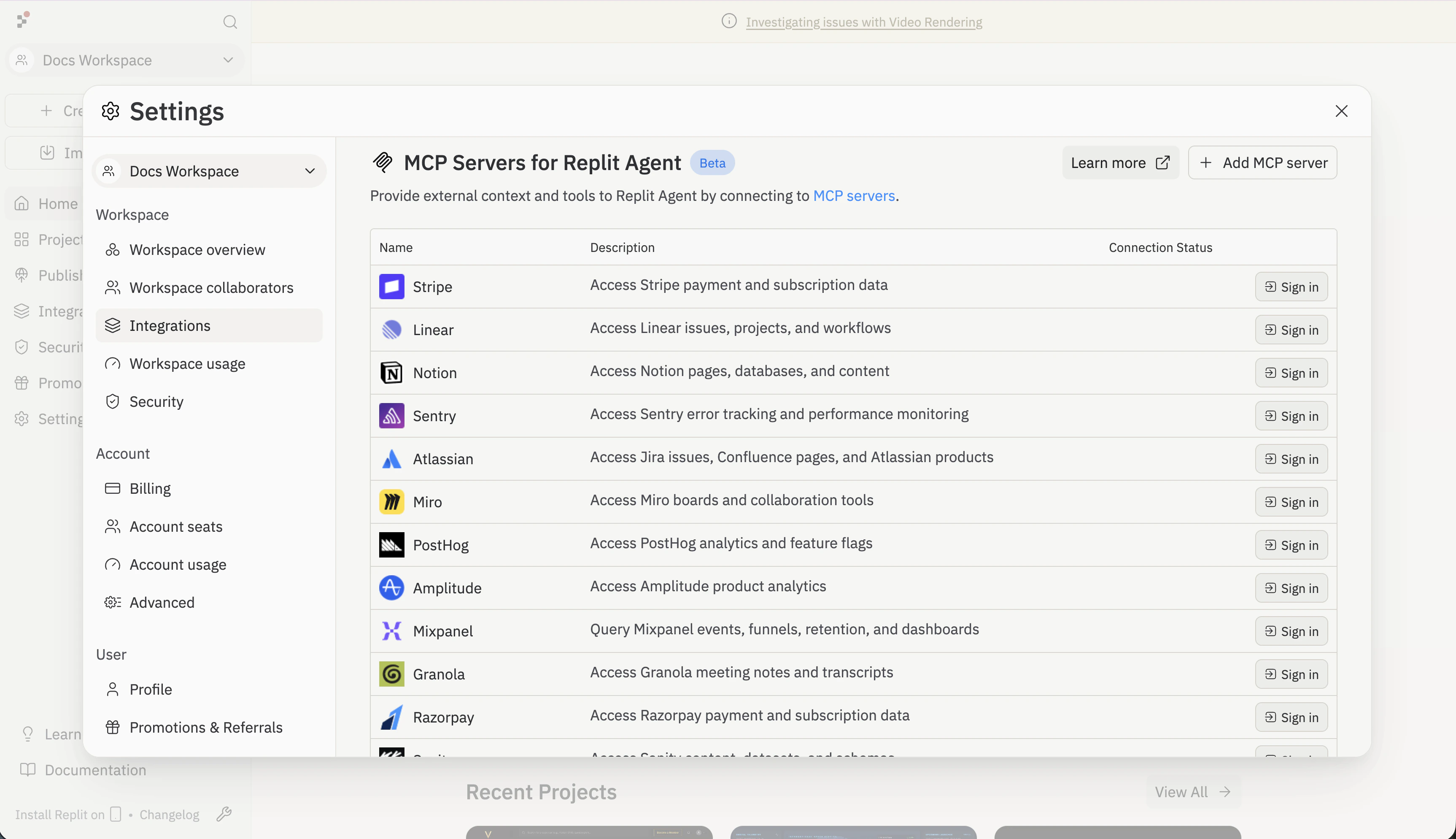
Replit ships with a curated list of MCP servers for popular services like Stripe, Linear, Notion, Sentry, and more. Connecting is a single sign-in click.

<Frame>
  <img src="https://mintcdn.com/replit/NqvyWjOnebeS7HrG/images/replitai/mcp-servers-pane.png?fit=max&auto=format&n=NqvyWjOnebeS7HrG&q=85&s=4eebca26c6b8f0349c76048a6cf43ac6" alt="MCP Servers for Replit Agent settings pane listing pre-listed servers including Stripe, Linear, Notion, Sentry, Atlassian, Miro, PostHog, Amplitude, Mixpanel, Granola, and Razorpay — each with a Sign in button" width="3452" height="1988" data-path="images/replitai/mcp-servers-pane.png" />
</Frame>

<Steps>
  <Step title="Open the Integrations pane">
    Go to [replit.com/integrations](https://replit.com/integrations) and scroll to **MCP Servers for Replit Agent**.
  </Step>

  <Step title="Pick a server">
    Find the service you want to connect — Stripe, Linear, Notion, Sentry, Atlassian, Miro, PostHog, Amplitude, Mixpanel, Granola, Razorpay, and others.
  </Step>

  <Step title="Sign in">
    Click **Sign in** next to the server. You'll be guided through the OAuth flow with that service. Once connected, the server's connection status updates and Agent can use its tools.
  </Step>
</Steps>

For the full catalog, see the [MCP Servers reference](/references/mcp/overview).

## Add a custom MCP server

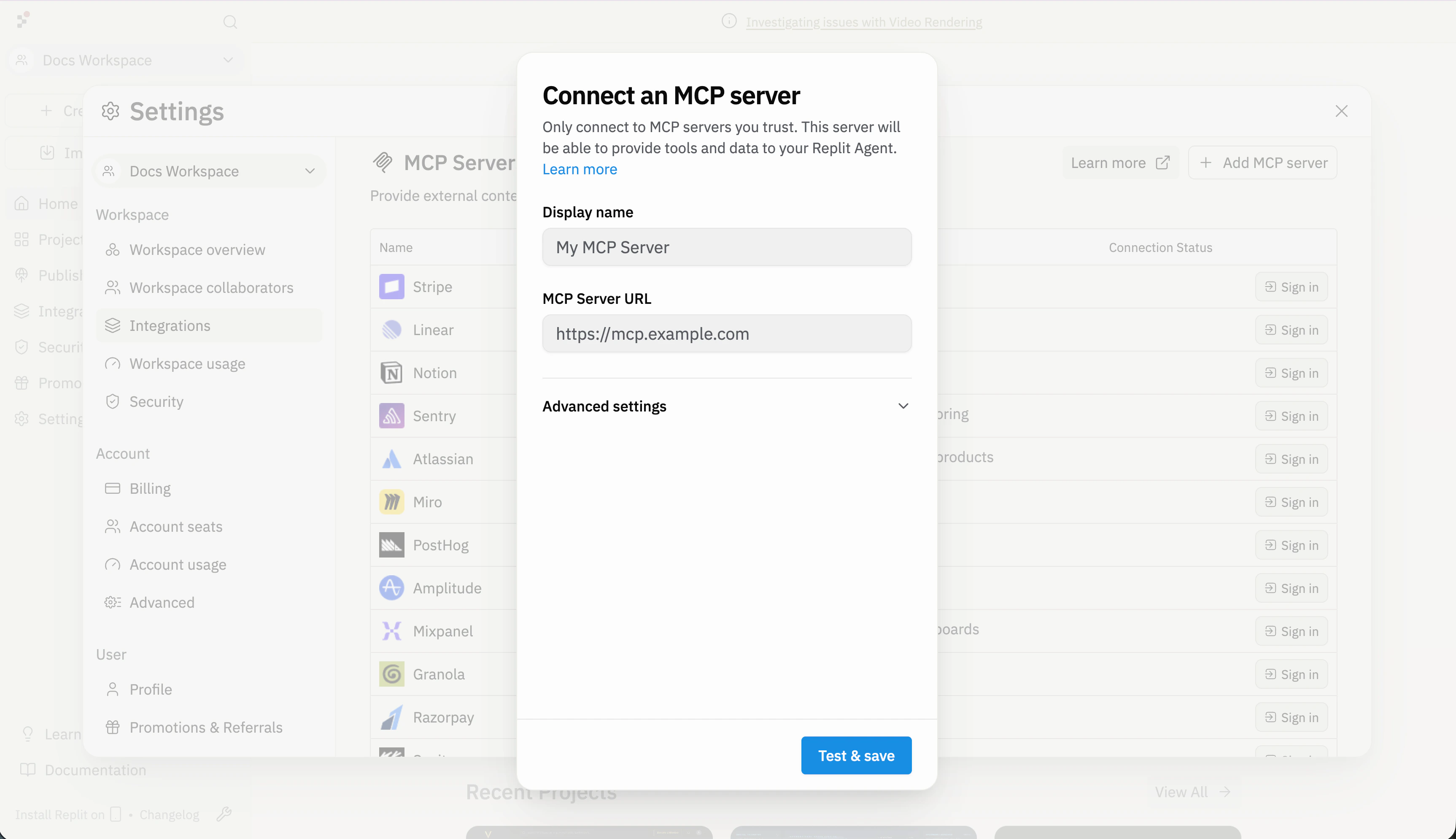
If the server you want isn't in the pre-listed catalog, add it by URL.

<Frame>
  <img src="https://mintcdn.com/replit/NqvyWjOnebeS7HrG/images/replitai/mcp-connect-dialog.png?fit=max&auto=format&n=NqvyWjOnebeS7HrG&q=85&s=f5086a7c5534cf6bbcaf4a04ed03e423" alt="Connect an MCP server dialog showing Display name field, MCP Server URL field, and Advanced settings expandable section" width="3452" height="1988" data-path="images/replitai/mcp-connect-dialog.png" />
</Frame>

<Steps>
  <Step title="Open the add-server dialog">
    On the MCP Servers settings pane, click **+ Add MCP server**.
  </Step>

  <Step title="Set a display name">
    Provide a recognizable name — Agent uses it to reference the server in chat logs.
  </Step>

  <Step title="Enter the server URL">
    Paste the MCP server's HTTPS endpoint. Open **Advanced settings** to add custom headers (e.g. `X-API-Key`) if the server needs authentication.
  </Step>

  <Step title="Test & save">
    Click **Test & save**. Replit attempts to connect and walks you through any OAuth flow the server requires. Once saved, the connection appears under MCP Servers with its status.
  </Step>
</Steps>

<Warning>
  Only connect to MCP servers you trust. A connected server can provide tools and data to Agent — review the source before adding any unfamiliar endpoint.
</Warning>

## Use MCP tools in Agent

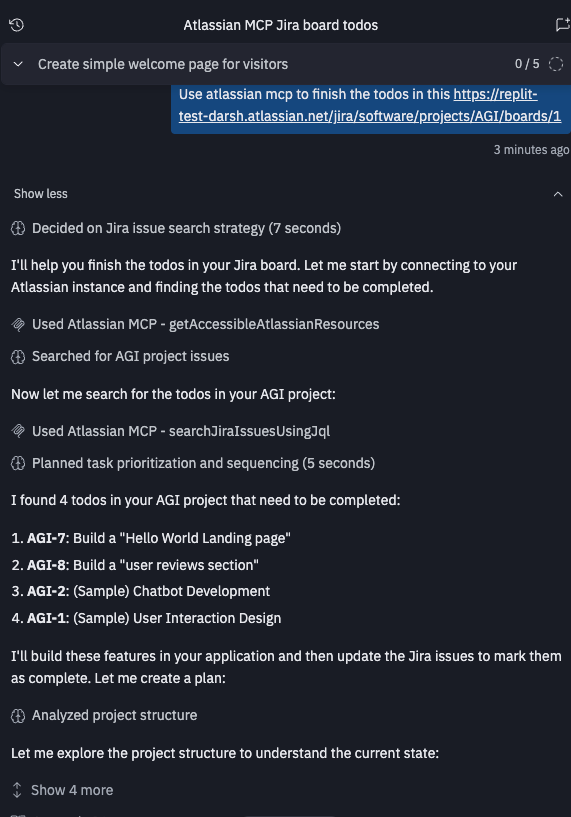
After a server is connected, Agent automatically fetches its tool list and makes the capabilities available across all your projects. To use a server, just mention it in chat:

> Use the Notion MCP server to find the most recent meeting notes.

<Frame>
  <img src="https://mintcdn.com/replit/TGnQMe8czfYDHq7u/images/replitai/custom-mcp/tool-call.png?fit=max&auto=format&n=TGnQMe8czfYDHq7u&q=85&s=66724b66f8599496fe22847a17503cea" alt="Agent calling a custom MCP server's tools in chat" width="571" height="817" data-path="images/replitai/custom-mcp/tool-call.png" />
</Frame>

Agent picks the right tools from the server based on your request. If a tool requires confirmation, you'll see a prompt before it runs.

## Share an install link

Install links let anyone add your MCP server to Replit with a single click — useful for documentation, READMEs, or anywhere you want to promote your integration.

Use the form below to generate an install link and a clickable badge for your server:

<McpLinkGenerator />

For the link format and badge customization options, see the [Install Links reference](/references/mcp/install-links).

## Next steps

<CardGroup cols={2}>
  <Card title="Model Context Protocol" icon="server" href="/learn/model-context-protocol">
    Understand what MCP is, how it works, and the capabilities it unlocks for AI.
  </Card>

  <Card title="MCP list" icon="folder-tree" href="/references/mcp/overview">
    Browse the curated list of MCP servers with one-click install badges.
  </Card>

  <Card title="Figma MCP" icon="figma" href="/references/mcp/figma">
    Connect Agent to Figma designs via MCP.
  </Card>
</CardGroup>